


Automating Regression Testing with Selenium and Python in Visual Studio Code

Introduction
Regression testing is an essential part of any software development cycle.As your project grows time consuming and error-prone. That’s where automation comes in. In this blog, We will walk you through how we automated my web application’s regression testing using Selenium with Python, all inside Visual Studio Code.
We will also cover how we used Selenium IDE for quick script generation and how we tackled some tricky issues caused by modern UI frameworks like Material UI (MUI).
Why I Chose Selenium with Python for Automation Testing
When it comes to automation testing, there are plenty of frameworks and tools out there — Playwright, Cypress, Puppeteer, TestCafe, and of course, Selenium. After researching and testing a few of them, We decided to go with Selenium + Python for several compelling reasons. Let us walk you through why this combination was the most practical, efficient, and scalable choice for our regression testing needs.
- Python is beginner-friendly, readable, and fast to code.
- Selenium supports all major browsers and is well-documented.
- It integrates smoothly with Visual Studio Code (VS Code), my preferred IDE.
- Perfect for automating functional and regression tests on web apps.
Step 1: Installing Python
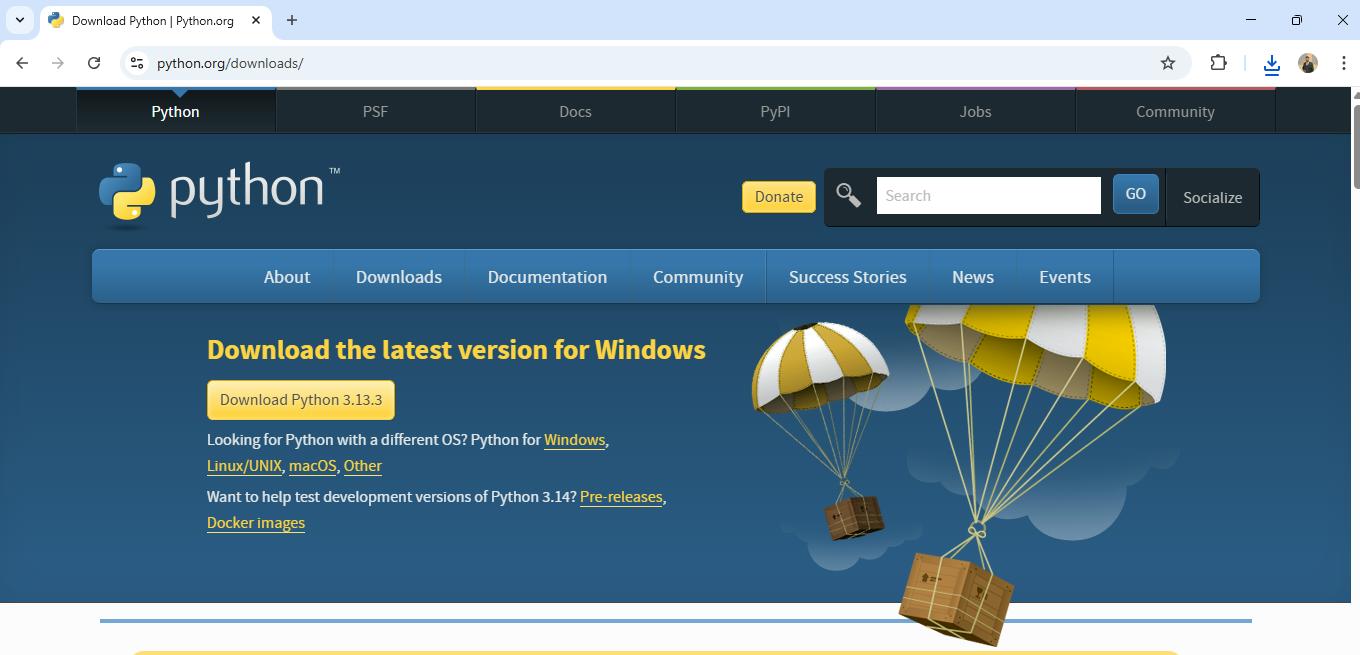
First things first, you need to have Python installed on your system. Python is the backbone of our testing scripts.
- Visit python.org and download the latest version of Python.
- Follow the installation prompts, ensuring that you check the box “Add Python to PATH” before clicking “Install Now.”
Step 2: Installing Selenium
Next, we need to install the Selenium package for Python. Selenium is the library that allows us to control web browsers through Python scripts.
- 1Open your command prompt or terminal.
- 2Run the following command to install Selenium:
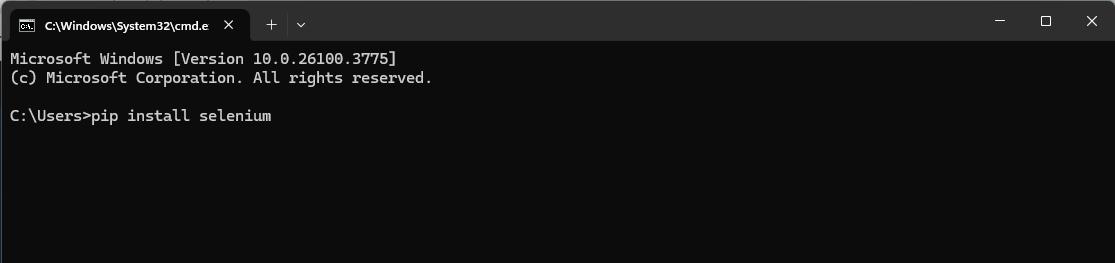
This will install the Selenium package along with all its dependencies.
Writing the Automation Script
Step 3: Setting Up Visual Studio Code
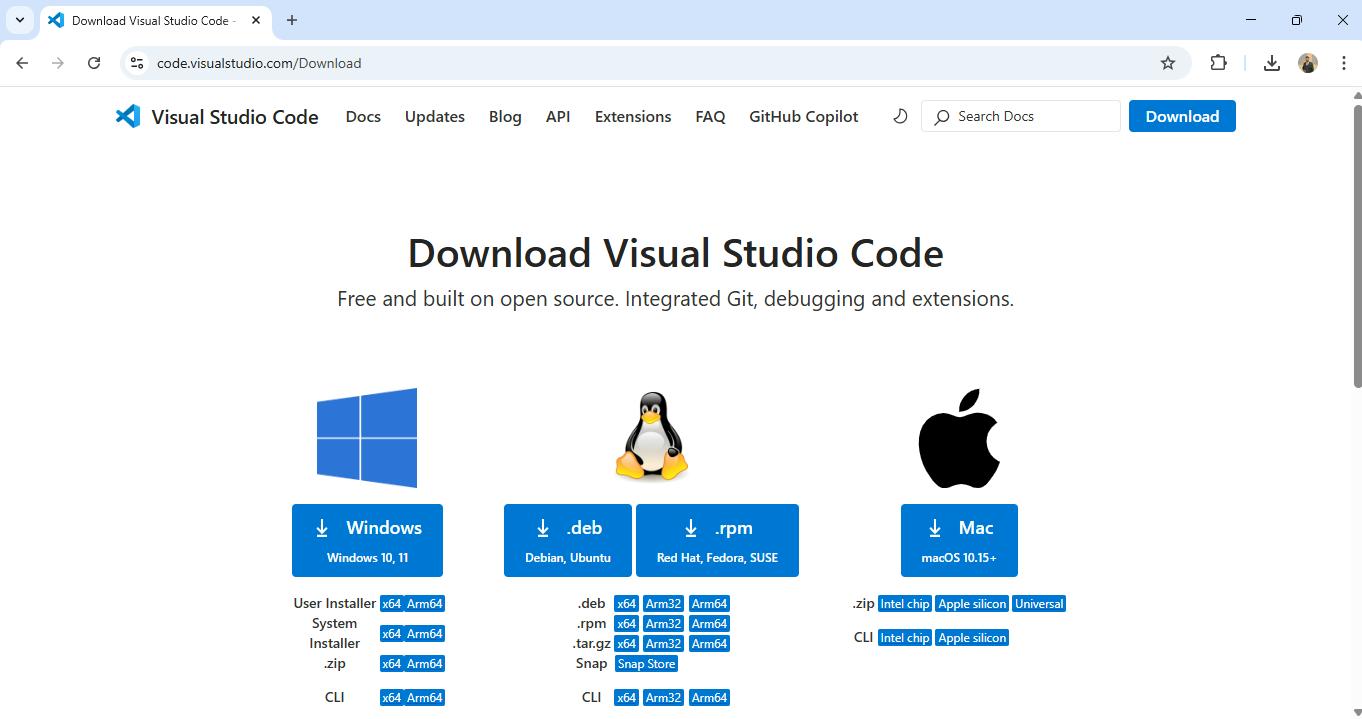
We prefer using Visual Studio Code (VS Code) as our Integrated Development Environment (IDE). It provides great support for Python and makes automation scripts easy to write and debug.
- 1Download VS Code from here.
- 2Install the Python extension in VS Code to get syntax highlighting, auto-completion, and debugging support for Python.
Step 4: Writing the First Automation Script
Now that we have our environment set up, let’s write the first automation script. The objective here is to open a browser, navigate to the login page, and perform actions like entering credentials and clicking buttons.
We’ll also guide you on how to save and run the file.
Steps to Follow:
- 1Open Visual Studio Code.
- 2Create a new file named
test_login.py (You can name it anything, but this name is simple and descriptive.)
Here’s an example script:
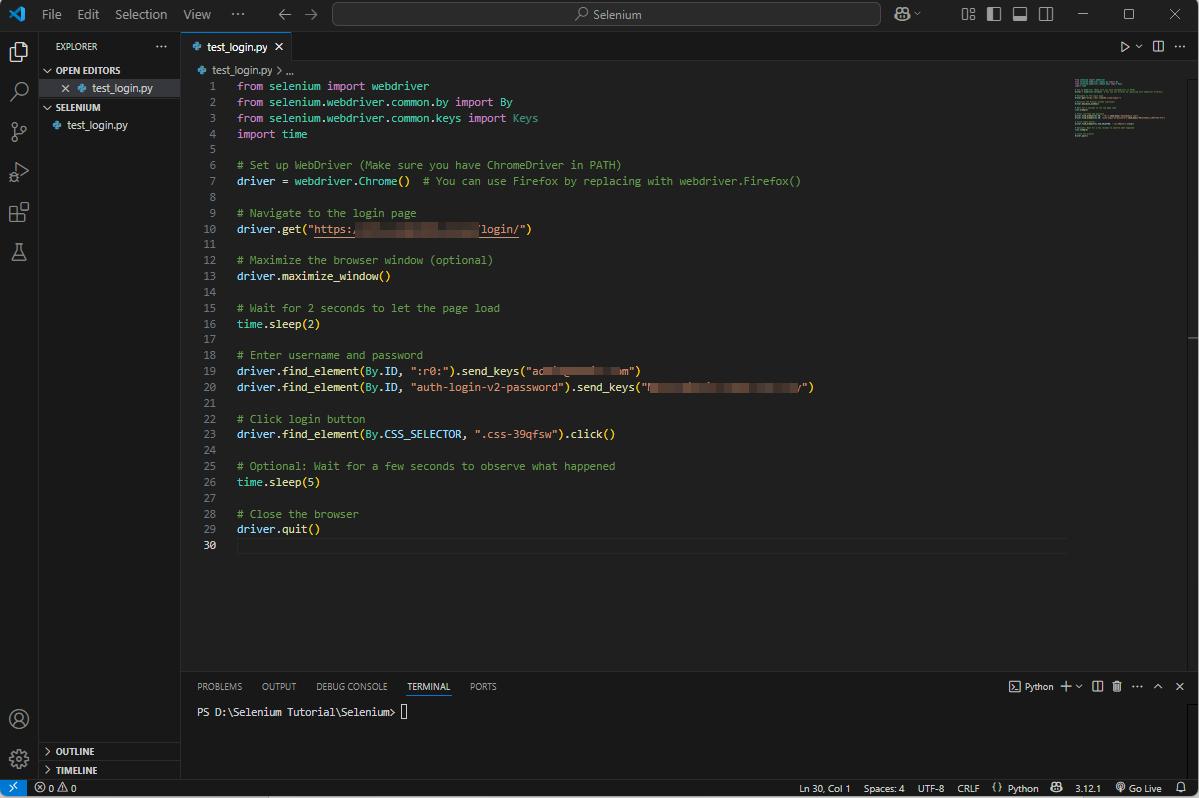
In this script:
- We first initialize the WebDriver.
- Open the web page https://test.project.com/login/.
- Locate the username and password fields by their IDs, enter credentials, and submit the form.
- Finally, we close the browser after 10 seconds.
Step 5: Automating with Selenium IDE in Firefox
While the above script was written manually, We also used Selenium IDE for quick script generation.
- 1Selenium IDE is a browser extension that records your actions in the browser and generates scripts in various languages (including Python).
- 2Unfortunately, Selenium IDE only works in Firefox (Chrome no longer supports it), so I installed the extension in Firefox.
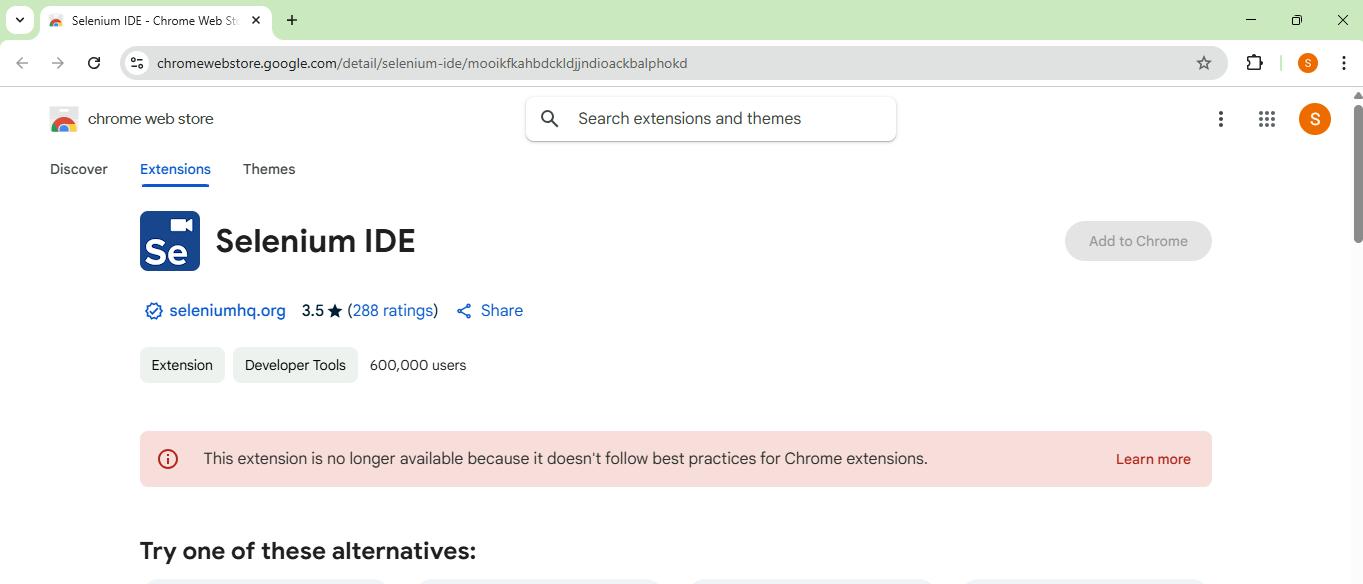
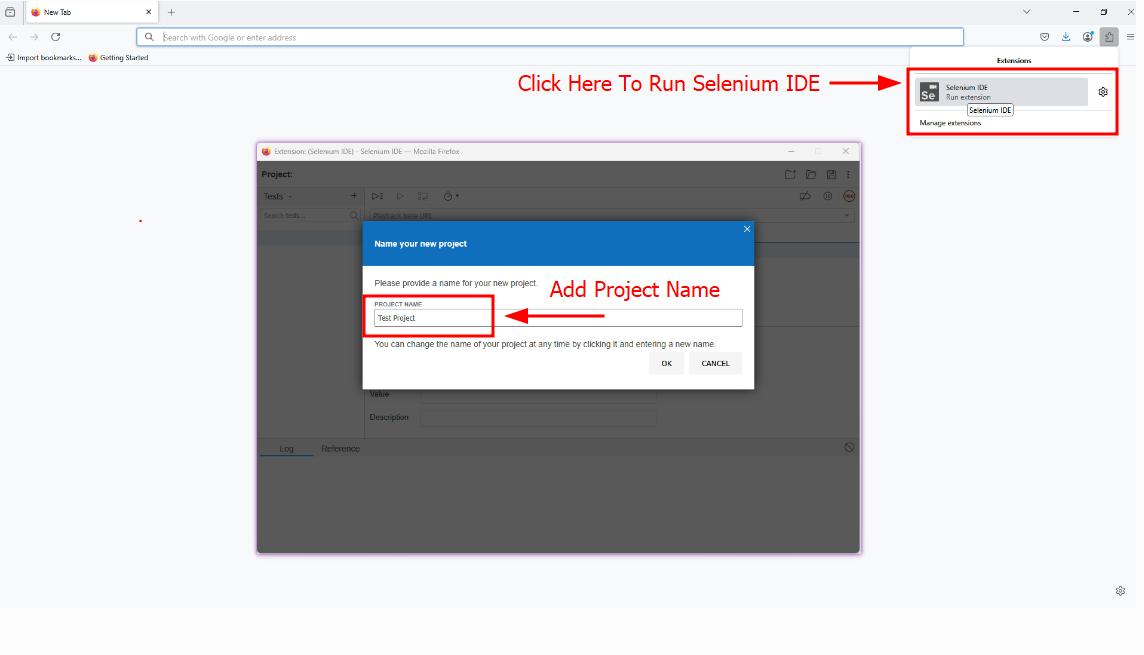
To use Selenium IDE:
- Install the Selenium IDE extension in Firefox from the Firefox Add-ons store.
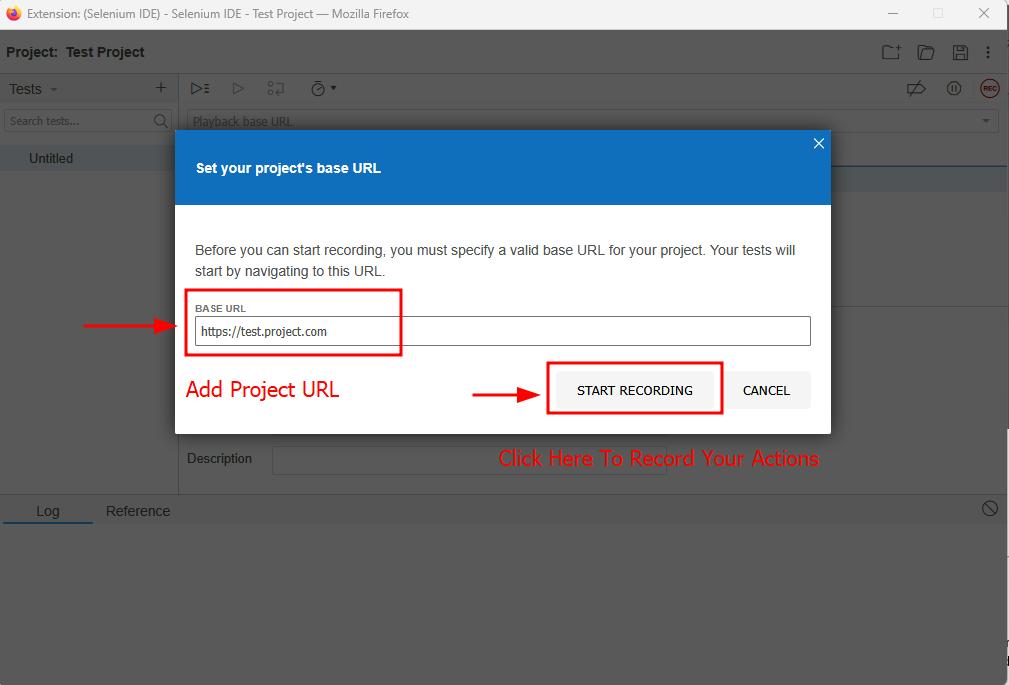
- Record your interactions on the web page (e.g., logging in, navigating, filling out forms).
- Export the recorded script in Python format.
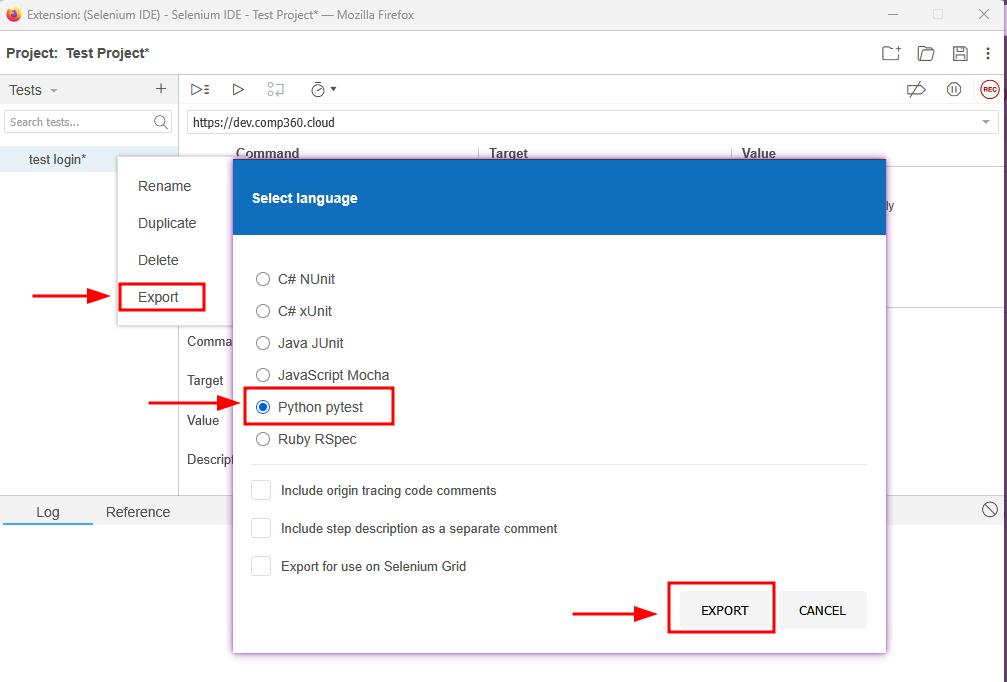
Once exported, We refined the script in VS Code, cleaning up unnecessary code and adding assertions to validate expected results.
Challenges Faced During Automation
1. UI Issues Due to Material UI (MUI)
One of the challenges we encountered while automating tests was dealing with dynamic selectors generated by Material UI (MUI). MUI, being a popular component library, generates dynamic class names and IDs, which makes it difficult to select elements consistently.
For example:
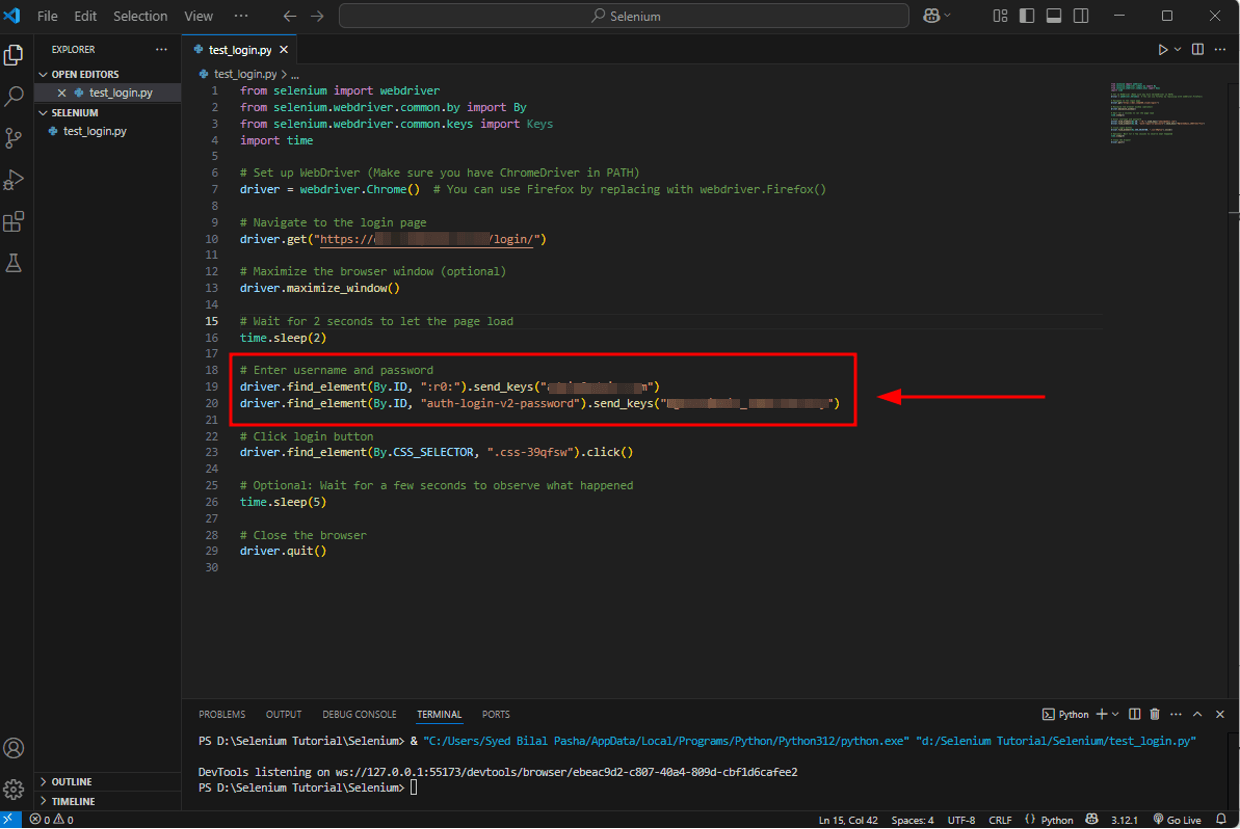
These dynamic classes made it hard to reliably select elements using traditional ID or class locators.
💡Solution: To overcome this, We switched to using XPath selectors. XPath is flexible enough to target elements based on their attributes, text, and position in the DOM.
For example:
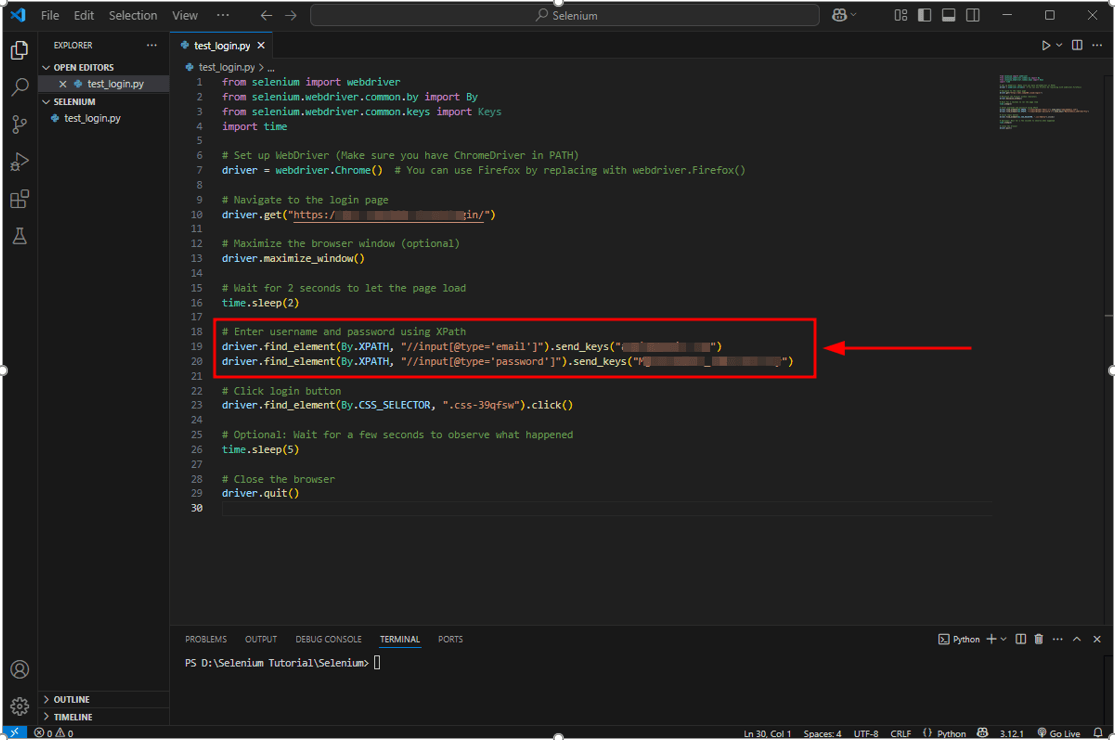
By using XPath, We could locate elements more reliably even when their class names changed.
Conclusion
By using Selenium with Python, We were able to automate the regression testing of the web application effectively. The combination of Visual Studio Code, Selenium IDE, and Python provided us with a powerful, flexible, and efficient environment to automate web tests.
While there were some challenges, particularly with dynamic selectors and Material UI (MUI), these were solved using XPath, and the rest of the testing process went smoothly.
If you are considering using Selenium + Python for your test automation, We highly recommend it. It’s beginner-friendly, well-documented, and powerful enough to handle complex web applications.

AWS Migration Checklist: A Practical Roadmap for Modern Businesses
Migrating businesses to AWS offers many benefits, including cost optimization, improved security, and greater scalability. However, a successful migration requires careful planning and execution. Otherwise, organizations may experience...
Read More
Agentic AI for QA & Software Testing with MCP Servers
For years, QA engineers have relied heavily on manual testing, repetitive validation, documentation, and traditional automation scripts But now, a new era of testing...
Read More
Our Proven Web Development Process That Delivers Real Results
In software development, success does not come from coding alone. Real results come from understanding business needs, planning the right workflow, building user-friendly designs...
Read More_16_11zon.webp&w=3840&q=100)
Secure AWS Connectivity Using AWS Systems Manager (SSM)
In traditional cloud architectures, secure access to private resources such as databases and internal servers often relies on...
Read More
Building a Secure Multi-Account AWS Architecture for Enterprise Environments (Dev, STG, UAT, Prod)
In today’s cloud-first world, scalability and speed are no longer enough security, governance, and cost control are equally critical...
Read More
Why You Should Use AI Agents Over Single Prompts: Unlocking the Power of Adaptive AI for Complex Workflows
In the world of artificial intelligence (AI), one of the biggest advancements has been the rise of AI agents that adapt dynamically to real-time data and complex workflows...
Read More_13_11zon.webp&w=3840&q=100)
Production Ready ( Quality, performance, and the lessons learned shipping to 150 stores )
We chose dbt over custom scripts, built observability, optimized performance, and shipped to production...
Read More_12_11zon.webp&w=3840&q=100)
Scaling from 15 to 150 Stores ( When copy-paste becomes technical debt, macros become salvation )
We built a pipeline with observability, incremental models for performance, and snapshots for history. Our 15-store deployment ran smoothly...
Read More_11_11zon.webp&w=3840&q=100)
Keeping Your Data Fresh: ( The wake-up call at 3am that taught us about observability )
That morning taught us a crucial lesson: a successful dbt run doesn't mean your data is fresh, accurate, or complete. You need observability.
Read MoreReady to Work With Us?
Most engagements start with a 20-minute conversation. No pitch, no pressure - just an honest discussion about what you're building and whether we're the right fit.