



Segmenting your audience in MailChimp for better reach

Introduction
Mailchimp is a popular email marketing platform that helps businesses manage their email lists, create newsletters, and track campaign performance. It is a versatile and user-friendly email marketing platform that can help businesses of all sizes improve their marketing efforts. It offers a range of features, including:
- Email builder: A drag-and-drop interface for creating visually appealing email templates.
- Subscriber management: Tools for organizing and managing your email list.
- Campaign tracking: Analytics to measure the success of your email campaigns.
- Automation: Automated workflows for sending emails based on specific triggers.
- Integrations: Connections with other marketing tools like e-commerce platforms and CRM systems.
Segmentation
Segmentation in Mailchimp is the process of breaking up your email list into more manageable, targeted groups according to factors such as engagement metrics, subscriber behavior, or demographics. By using this technique, you can customize your email marketing to appeal to various audience segments and make sure that each one gets information that best suits their requirements or interests. By increasing engagement rates, decreasing unsubscribe rates, and increasing the possibility that each targeted audience subgroup will find resonance in your communications, creating segments can help you increase the success of your email advertising efforts.
Segmentation is further divided into two parts.
Static Segmentation: These are fixed groupings that you manually form according to predetermined standards or characteristics. Until it is manually updated, a group that has been created remains intact.
Dynamic Segmentation: These are automatically updated based on real-time data or conditions. The segment changes automatically as subscribers meet or no longer meet the criteria.
Step by Step Guide to create Segmentation:
A segment of contacts who joined the audience after the most recent email was delivered will be created under one condition. Simple segments just have one condition; hence the outcomes are independent of the and/or logic.
1. After selecting Audience, select Segments.
2. Select the desired audience to work with by clicking the drop-down menu labeled “Current audience.”
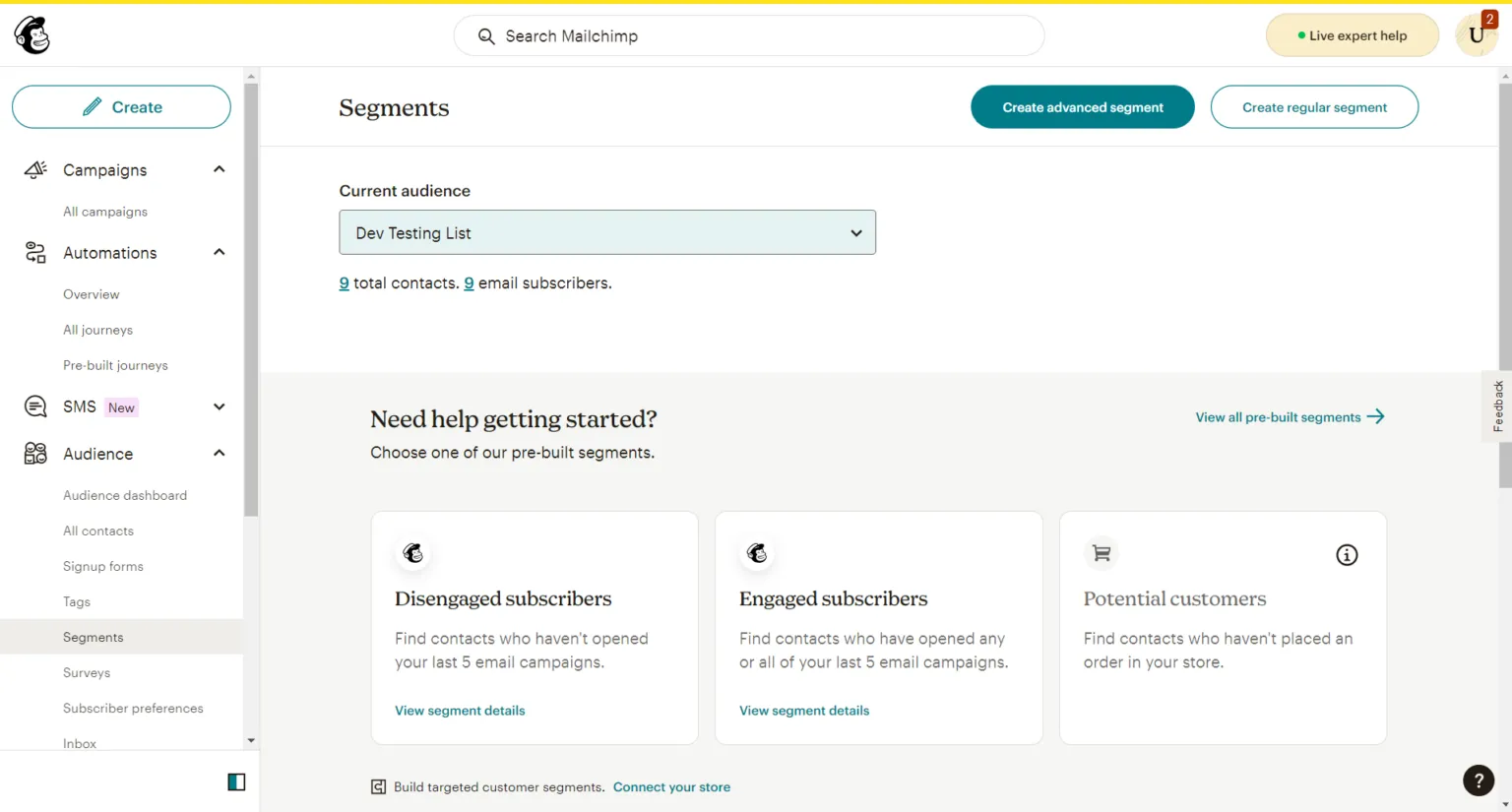
3. Make a regular segment.
4. To select your initial segmenting condition, use the Select or search a filter drop-down.
5. Click Email Date Added in the How your contacts were acquired section. (You may select or set multiple filters at a time)
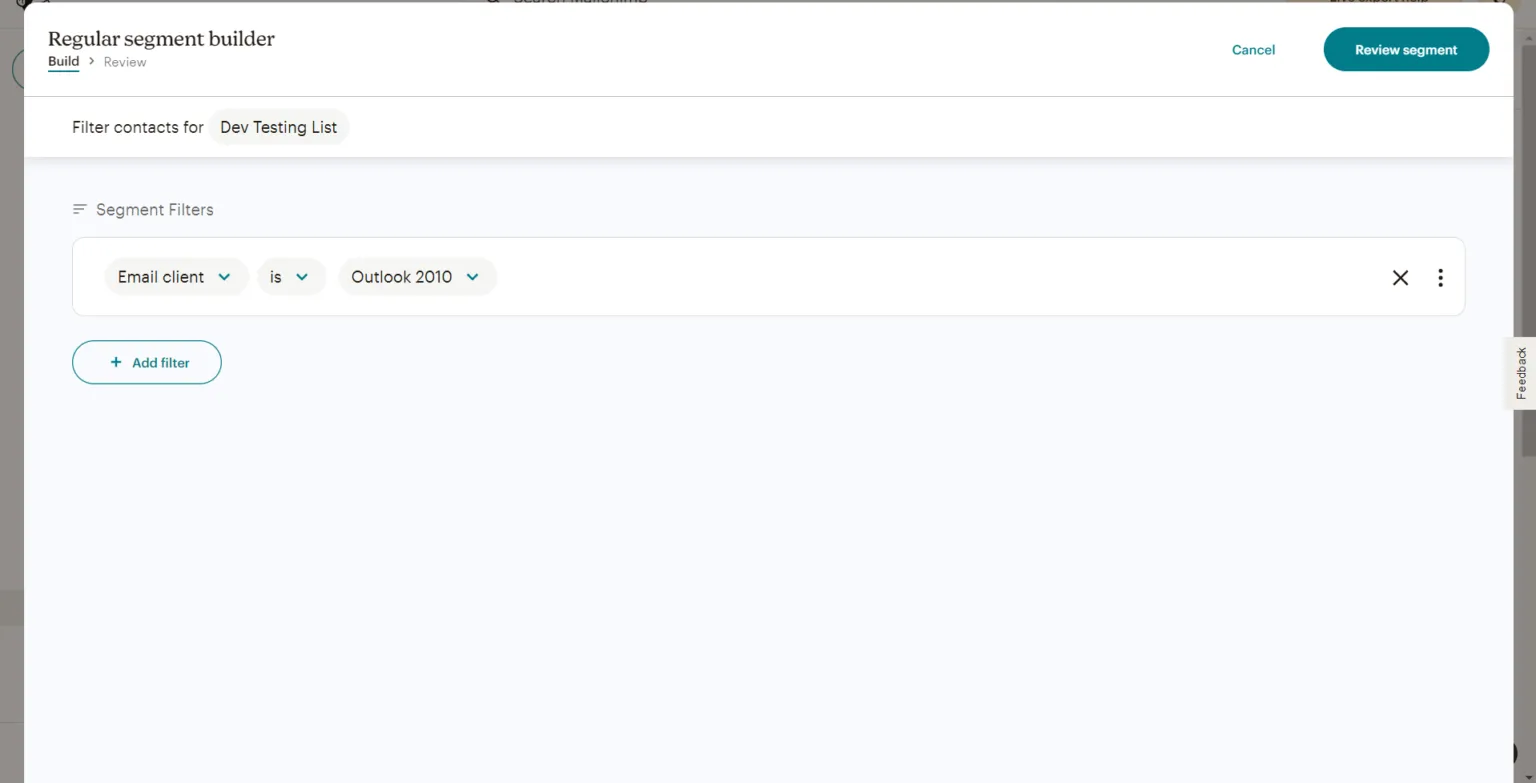
6. After that, click the most recent campaign that was sent.
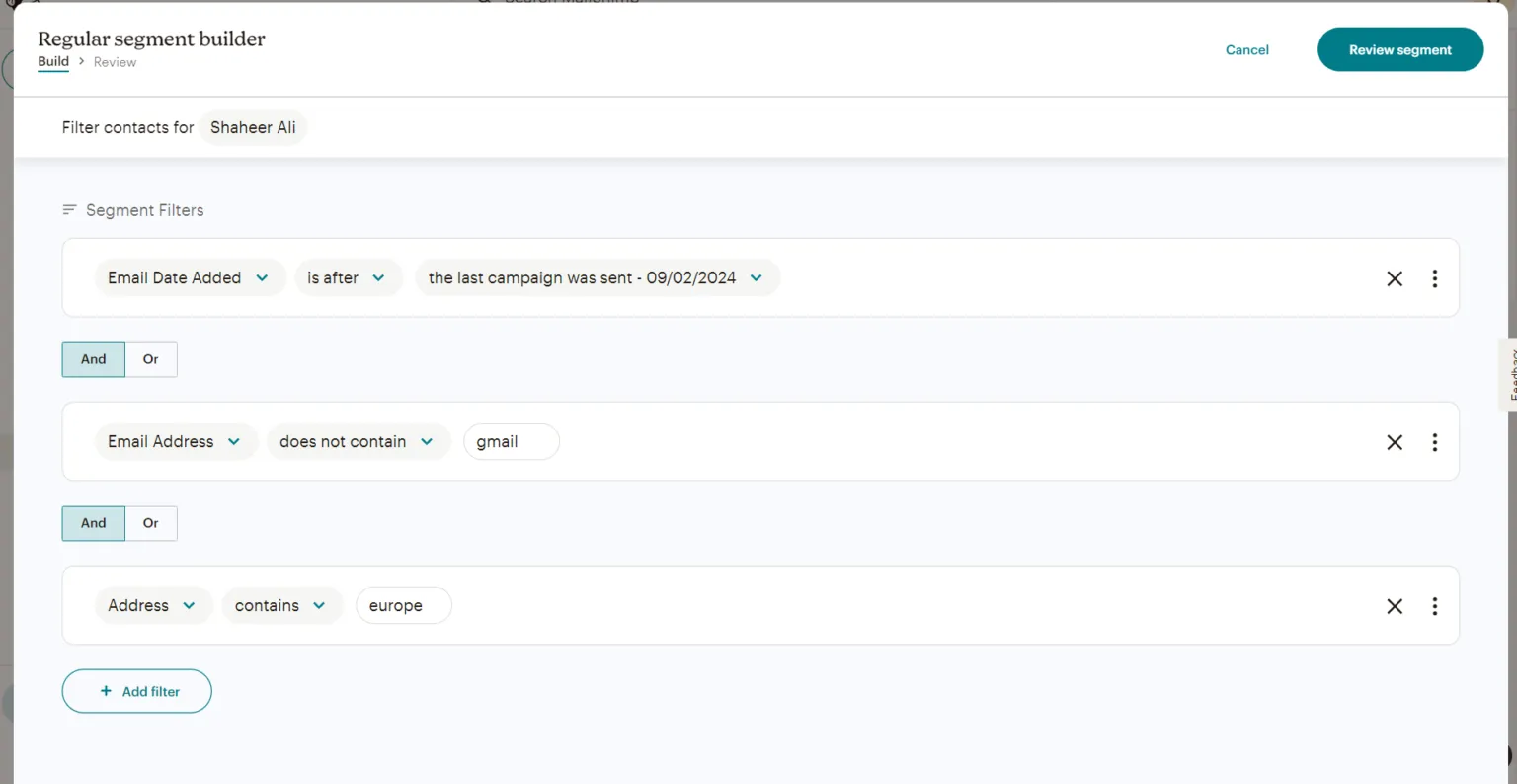
7. Select the segment to review.
8. In the Give your section a name field, give your segment a name.
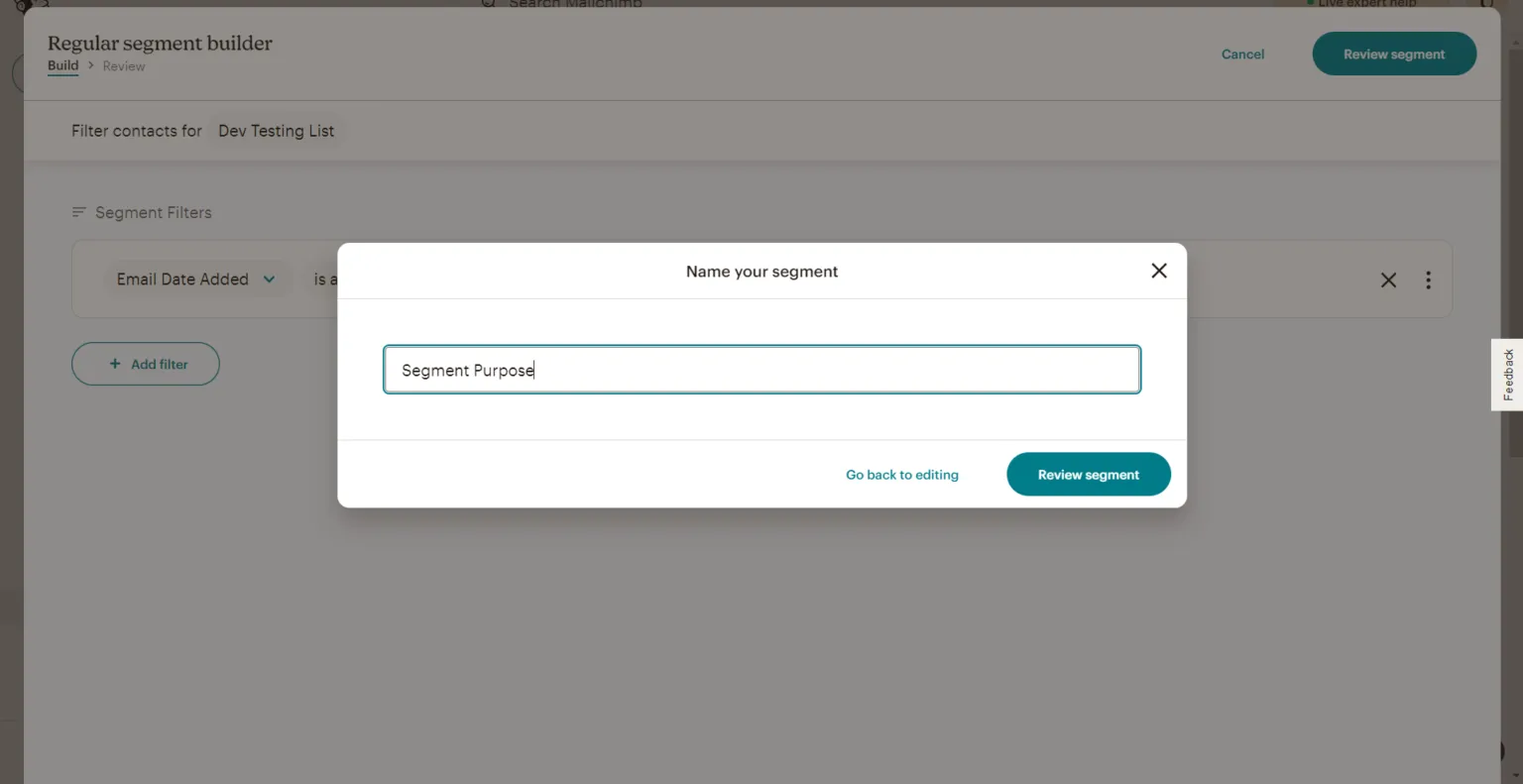
9. Select the segment to review.
It will create a simple regular segment.
Utilizing the Segments page for sending an email
1. Access the Segments Page
- Navigate to your email marketing platform’s dashboard.
- Click on the “Audience” tab, and then select “Segments” to view your list of segments.
2. Choose Your Audience:
- If you have multiple audiences, use the “Current audience” drop-down menu to select the one containing the segment you want to target.
3. Select the Segment:
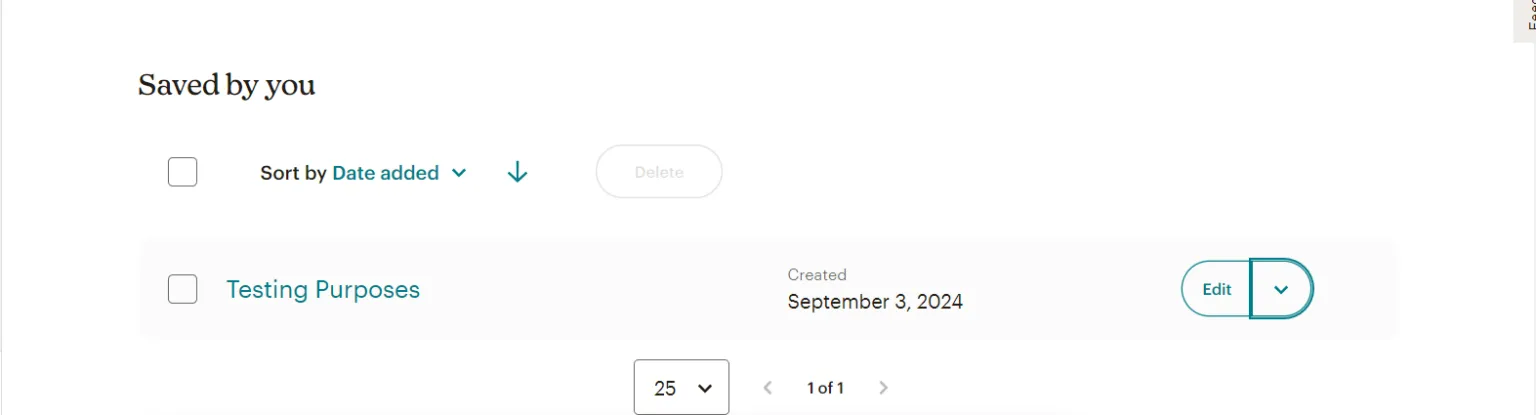
- In the “Saved by you” section, locate the segment you wish to email.
- Click the drop-down menu next to this segment to see the available options.
4. Decide on the Campaign Type:
- Send regular campaign: For a formatted, multimedia-rich email.
- Send plain-text campaign: For a simple, unformatted email.
- Send RSS campaign: To send automated updates based on an RSS feed.
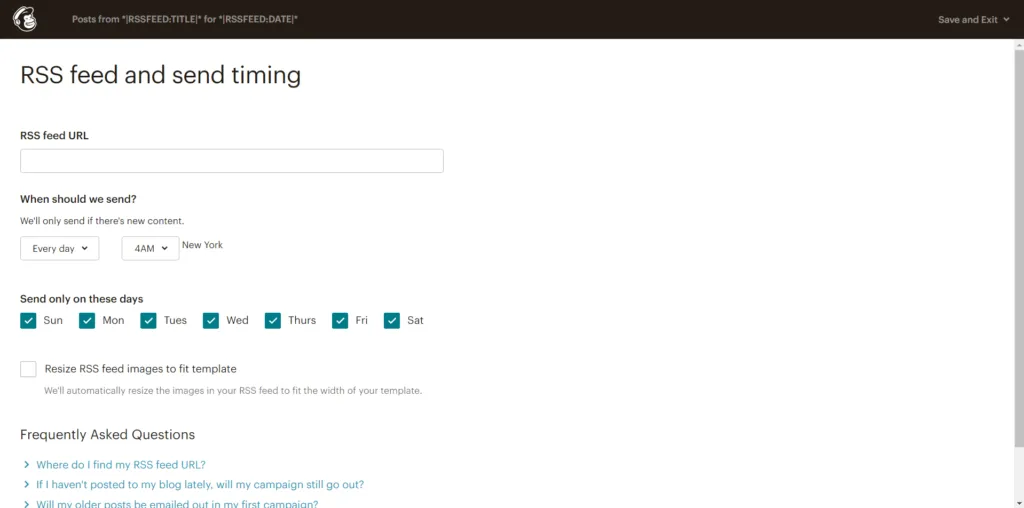
5. Complete the Email Setup:
- Follow the platform’s email checklist to configure your email content, subject line, and settings.
- Once everything is set, click “Send” to dispatch the email immediately or “Schedule” to set a future send date.
Conclusion
By utilizing the Segments page for sending an email, you can target your audience more effectively and increase the chances of your email being opened and read. It is a powerful tool that can help you improve your email marketing efforts and achieve your business goals.

AWS Security Best Practices Every Business Should Follow
As more organizations migrate their applications and critical workloads to AWS, securing cloud environments has become a business priority rather than just an IT responsibility...
Read More
AWS Migration Checklist: A Practical Roadmap for Modern Businesses
Migrating businesses to AWS offers many benefits, including cost optimization, improved security, and greater scalability. However, a successful migration requires careful planning and execution. Otherwise, organizations may experience...
Read More
Agentic AI for QA & Software Testing with MCP Servers
For years, QA engineers have relied heavily on manual testing, repetitive validation, documentation, and traditional automation scripts But now, a new era of testing...
Read More
Our Proven Web Development Process That Delivers Real Results
In software development, success does not come from coding alone. Real results come from understanding business needs, planning the right workflow, building user-friendly designs...
Read More_16_11zon.webp&w=3840&q=100)
Secure AWS Connectivity Using AWS Systems Manager (SSM)
In traditional cloud architectures, secure access to private resources such as databases and internal servers often relies on...
Read More
Building a Secure Multi-Account AWS Architecture for Enterprise Environments (Dev, STG, UAT, Prod)
In today’s cloud-first world, scalability and speed are no longer enough security, governance, and cost control are equally critical...
Read More
Why You Should Use AI Agents Over Single Prompts: Unlocking the Power of Adaptive AI for Complex Workflows
In the world of artificial intelligence (AI), one of the biggest advancements has been the rise of AI agents that adapt dynamically to real-time data and complex workflows...
Read More_13_11zon.webp&w=3840&q=100)
Production Ready ( Quality, performance, and the lessons learned shipping to 150 stores )
We chose dbt over custom scripts, built observability, optimized performance, and shipped to production...
Read More_12_11zon.webp&w=3840&q=100)
Scaling from 15 to 150 Stores ( When copy-paste becomes technical debt, macros become salvation )
We built a pipeline with observability, incremental models for performance, and snapshots for history. Our 15-store deployment ran smoothly...
Read MoreReady to Work With Us?
Most engagements start with a 20-minute conversation. No pitch, no pressure - just an honest discussion about what you're building and whether we're the right fit.