


Create an Amazon Aurora DB cluster

Introduction
Amazon Aurora is a relational database service compatible with MySQL offered by Amazon Web Services. It is designed to combine the performance and high availability for commercial databases with the simplicity and cost-effectiveness of open-source databases.
To create an Aurora MySQL DB cluster, follow these steps
Step 1
Sign in to the AWS Management Console and open the Amazon RDS console at https://console.aws.amazon.com/rds/.
Step 2
In the navigation panel, select DATABASES.
Step 3
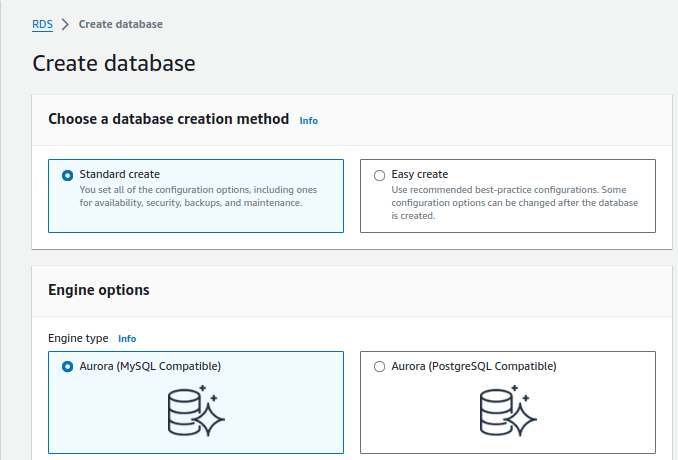
Select CREATE DATABASE.
Step 4
On the Create database page, select STANDARD CREATE.
Step 5
For Engine options, select AURORA (MySQL Compatible).
Step 6
In the Templates section, select DEV/TEST.
Step 7
In the Settings section, set the following values:
- DB cluster identifier – Type database-1.
- Master username – Type admin.
- Auto generate a password – Leave the option turned off.
- Master password – Type a password.
- Confirm password – Retype the password.


Step 8
In the cluster storage configuration section, by default Aurora Standard is selected because it’s cost-effective. But if you want to select Aurora I/O-Optimized gives you improved performance, predicted price and also gives up-to 40% savings.
Step 9
In the Instance configuration section, set these values:
- Burstable classes (includes t classes)
- db.t3.small(obsolete) or db.t3.medium or db.t3.large etc

Step 10
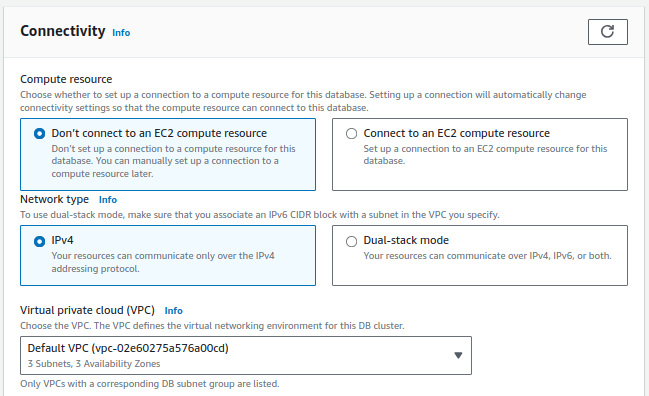
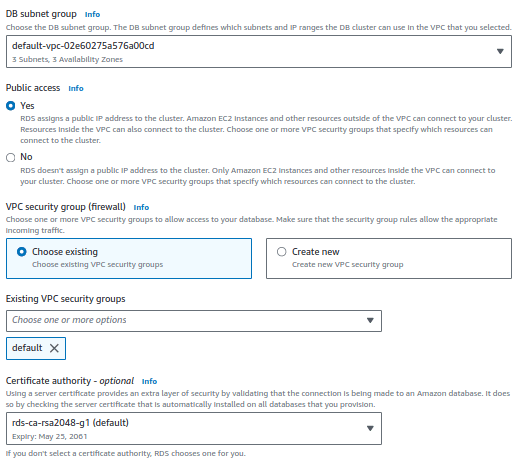
10. In the Connectivity section, set these values and keep the other values as their defaults:
- For Compute resource, choose Don’t connect to an EC2 compute resource.
- For Public access, if you select ‘Yes’, then RDS assigns a public IP to the cluster.
Step 11
Open the Additional configuration section, and enter a ‘sample’ for Initial database name. Keep the default settings for the other options.

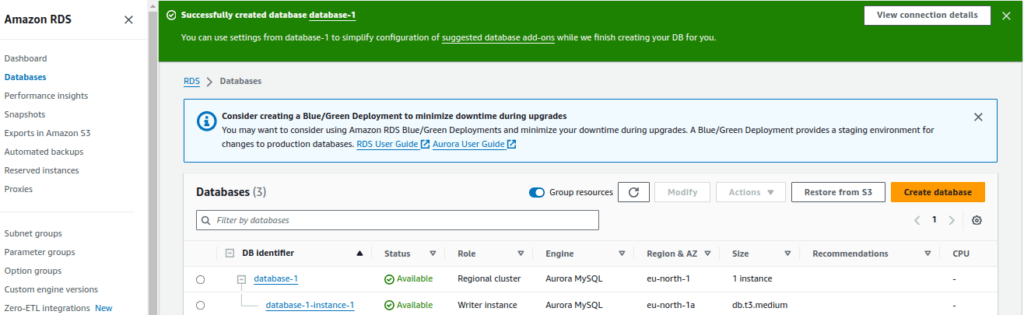
Once done with all the above steps, you can see the status of your database cluster by clicking on the Databases in the navigation pane.When the status of your DB cluster becomes available click on the DB cluster name for details. For connectivity with a third party tool like Workbench, choose the Connectivity & security section, view the Endpoint and Port of the writer DB instance.
AWS Security Best Practices Every Business Should Follow
As more organizations migrate their applications and critical workloads to AWS, securing cloud environments has become a business priority rather than just an IT responsibility...
Read More
AWS Migration Checklist: A Practical Roadmap for Modern Businesses
Migrating businesses to AWS offers many benefits, including cost optimization, improved security, and greater scalability. However, a successful migration requires careful planning and execution. Otherwise, organizations may experience...
Read More
Agentic AI for QA & Software Testing with MCP Servers
For years, QA engineers have relied heavily on manual testing, repetitive validation, documentation, and traditional automation scripts But now, a new era of testing...
Read More
Our Proven Web Development Process That Delivers Real Results
In software development, success does not come from coding alone. Real results come from understanding business needs, planning the right workflow, building user-friendly designs...
Read More_16_11zon.webp&w=3840&q=100)
Secure AWS Connectivity Using AWS Systems Manager (SSM)
In traditional cloud architectures, secure access to private resources such as databases and internal servers often relies on...
Read More
Building a Secure Multi-Account AWS Architecture for Enterprise Environments (Dev, STG, UAT, Prod)
In today’s cloud-first world, scalability and speed are no longer enough security, governance, and cost control are equally critical...
Read More
Why You Should Use AI Agents Over Single Prompts: Unlocking the Power of Adaptive AI for Complex Workflows
In the world of artificial intelligence (AI), one of the biggest advancements has been the rise of AI agents that adapt dynamically to real-time data and complex workflows...
Read More_13_11zon.webp&w=3840&q=100)
Production Ready ( Quality, performance, and the lessons learned shipping to 150 stores )
We chose dbt over custom scripts, built observability, optimized performance, and shipped to production...
Read More_12_11zon.webp&w=3840&q=100)
Scaling from 15 to 150 Stores ( When copy-paste becomes technical debt, macros become salvation )
We built a pipeline with observability, incremental models for performance, and snapshots for history. Our 15-store deployment ran smoothly...
Read MoreReady to Work With Us?
Most engagements start with a 20-minute conversation. No pitch, no pressure - just an honest discussion about what you're building and whether we're the right fit.