



Streamlining Document Workflows with DocuSign API: A Brief Overview

Introduction
In today’s digital age, automating document workflows is essential for efficiency and user satisfaction. At Qavi Tech, we faced the challenge of needing to send both pre-existing and dynamically generated PDFs from our application to users for signing and downloading. To meet this need, we turned to the DocuSign API.
The Problem
Our application required a seamless way to send digital documents to users, ensuring they could easily sign and return them without leaving the platform. Traditional methods were cumbersome and time consuming, prompting us to look for a more integrated solution.
The Solution: DocuSign API Integration
DocuSign was the perfect fit, offering a robust API to automate document sending and signing. However, the integration process was far from straightforward. From handling OAuth 2.0 authentication to implementing JWT tokens, the process introduced several challenges. Debugging issues like invalid grant errors and troubleshooting authorization problems tested our persistence.
Despite the hurdles, successfully integrating the DocuSign API proved rewarding. It underscored the importance of thoroughly understanding documentation, especially when dealing with complex authentication flows like OAuth. The experience not only improved our application’s functionality but also broadened my understanding of API integrations.
Getting started with docu-Sign API Integration
1. First step is to visit app-d.docusign.com and create a developer account
2. Move over to Apps and Keys from top right corner and setup an integration and RSA key pairs
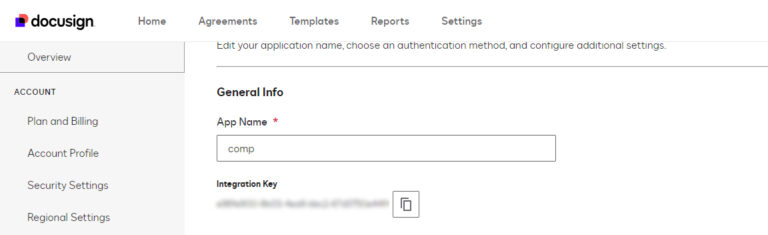
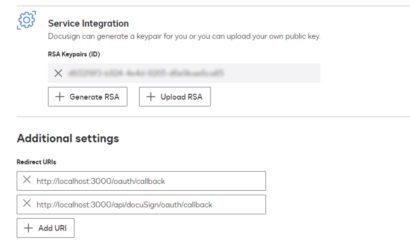
3. After this, Setup your .env file and set all the environment variables
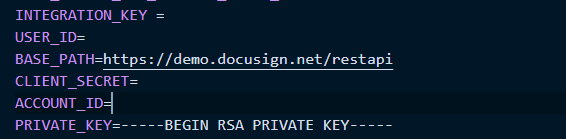
Now comes the tricky part, you have to setup your app to first get one time consent and then call for JWT token every time you have to make a request
4. Now, let us setup an express server for our node project
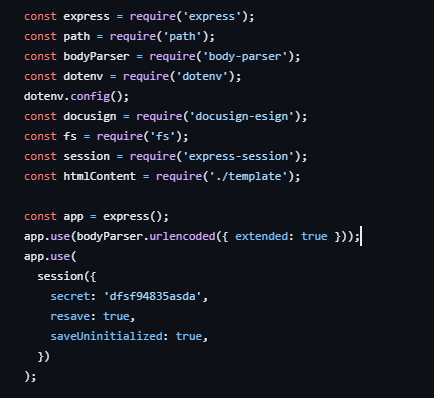
5. Next step is to create a consent URL and get redirected with token.

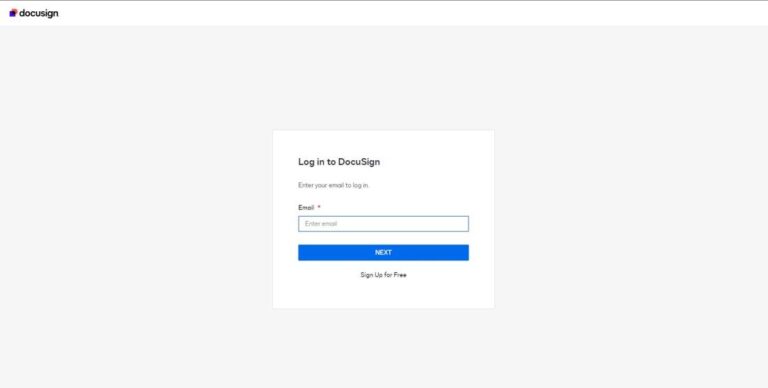
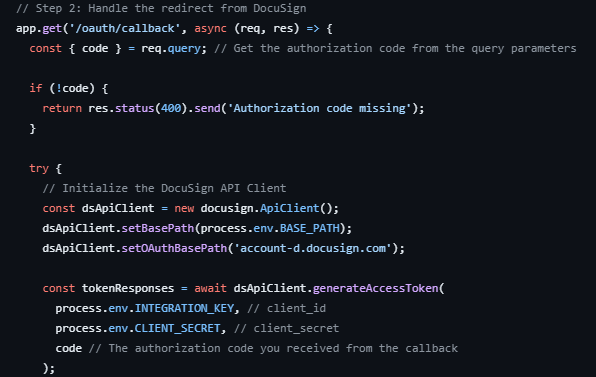
6. Now, lets handle the redirect URL logic
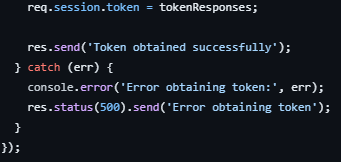
7. Set the token to your session to use it in other Api calls.
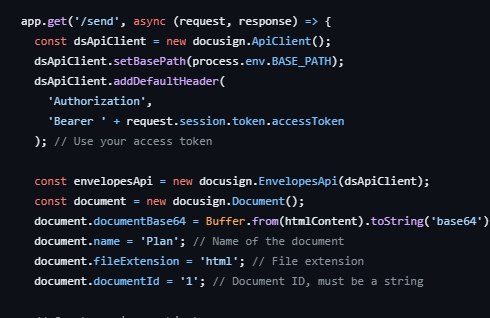
8. Now, lets try sending an envelope with html document for signing.
Setup a path and initialize the Api Client
9. Now, let setup our signer and send the envelope
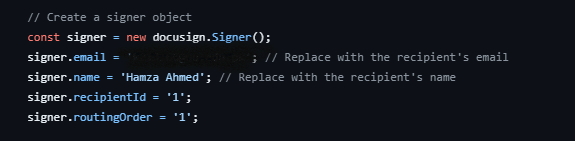
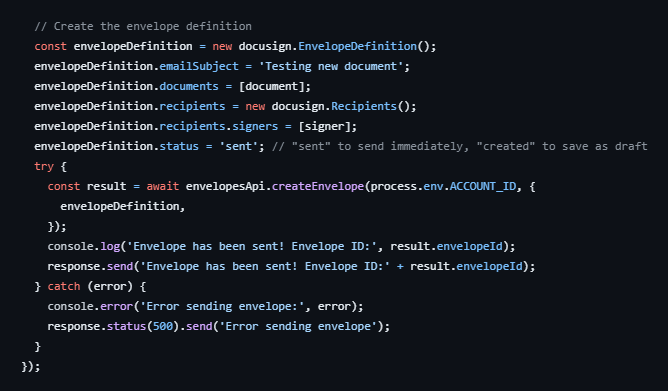
10. We can view the sent envelope in our gmail.
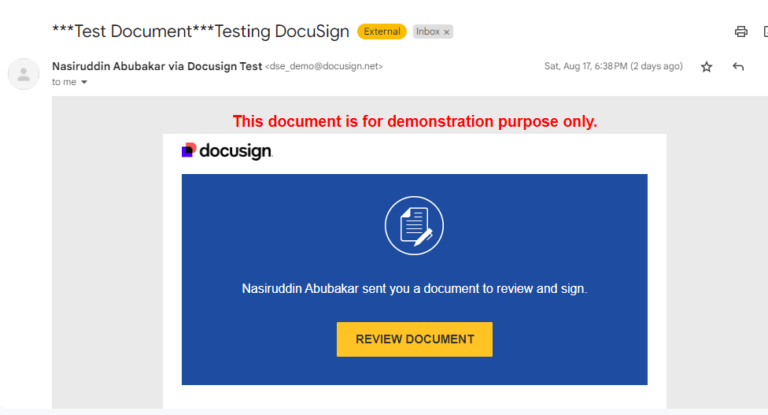
11. Open the envelope to see your document
12. Your document is now complete.
AWS Security Best Practices Every Business Should Follow
As more organizations migrate their applications and critical workloads to AWS, securing cloud environments has become a business priority rather than just an IT responsibility...
Read More
AWS Migration Checklist: A Practical Roadmap for Modern Businesses
Migrating businesses to AWS offers many benefits, including cost optimization, improved security, and greater scalability. However, a successful migration requires careful planning and execution. Otherwise, organizations may experience...
Read More
Agentic AI for QA & Software Testing with MCP Servers
For years, QA engineers have relied heavily on manual testing, repetitive validation, documentation, and traditional automation scripts But now, a new era of testing...
Read More
Our Proven Web Development Process That Delivers Real Results
In software development, success does not come from coding alone. Real results come from understanding business needs, planning the right workflow, building user-friendly designs...
Read More_16_11zon.webp&w=3840&q=100)
Secure AWS Connectivity Using AWS Systems Manager (SSM)
In traditional cloud architectures, secure access to private resources such as databases and internal servers often relies on...
Read More
Building a Secure Multi-Account AWS Architecture for Enterprise Environments (Dev, STG, UAT, Prod)
In today’s cloud-first world, scalability and speed are no longer enough security, governance, and cost control are equally critical...
Read More
Why You Should Use AI Agents Over Single Prompts: Unlocking the Power of Adaptive AI for Complex Workflows
In the world of artificial intelligence (AI), one of the biggest advancements has been the rise of AI agents that adapt dynamically to real-time data and complex workflows...
Read More_13_11zon.webp&w=3840&q=100)
Production Ready ( Quality, performance, and the lessons learned shipping to 150 stores )
We chose dbt over custom scripts, built observability, optimized performance, and shipped to production...
Read More_12_11zon.webp&w=3840&q=100)
Scaling from 15 to 150 Stores ( When copy-paste becomes technical debt, macros become salvation )
We built a pipeline with observability, incremental models for performance, and snapshots for history. Our 15-store deployment ran smoothly...
Read MoreReady to Work With Us?
Most engagements start with a 20-minute conversation. No pitch, no pressure - just an honest discussion about what you're building and whether we're the right fit.