
Setting Up Jenkins Build Notifications in Google Chat: A Practical Guide

Got a project?
Let's discuss your project
Introduction
In this guide, we’ll walk through the process of setting up DevOps automation build notifications in a Google Workspace chat. By integrating Jenkins with Google Chat, you can receive real-time updates on the status of your builds (success, failure, etc.) directly in your workspace. This is a great way to keep your team informed and streamline communication for better productivity.
Prerequisites
- A running Jenkins server with administrator access.
- A Google Workspace account with access to Google Chat.
- Basic knowledge of Jenkins pipelines/jobs.
Steps to Set Up Jenkins Build Notifications in Google Workspace
Step 1: Install the Google Hangouts Chat Bot in Google Workspace
1. Open your Google Workspace and navigate to the desired space/channel where you want to receive Jenkins build notifications.
2. Go to the Settings of the space, and under the Integrations tab, click on Apps.
3. In the search bar, type “Jenkins” and you should see a Jenkins bot listed for Google Chat.
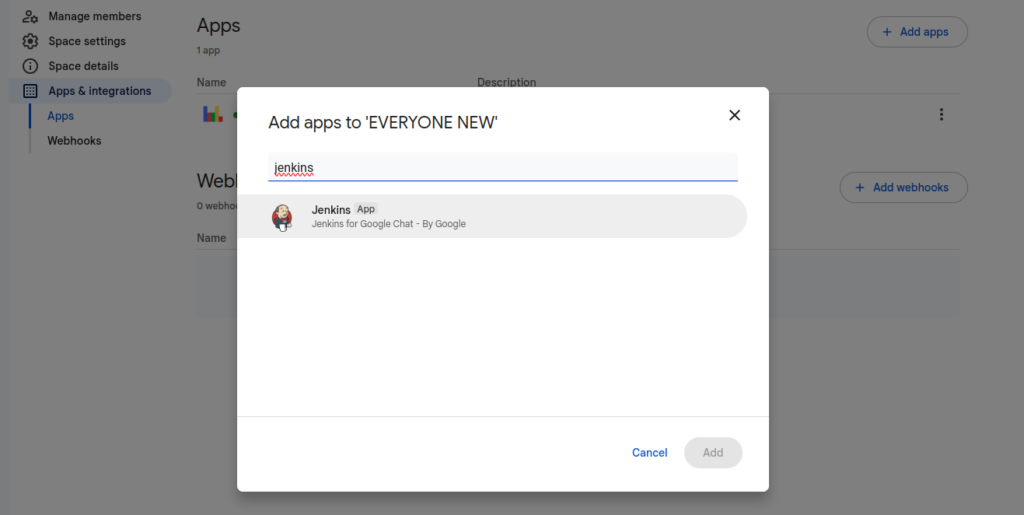
4. Click Add to add the bot to the space.
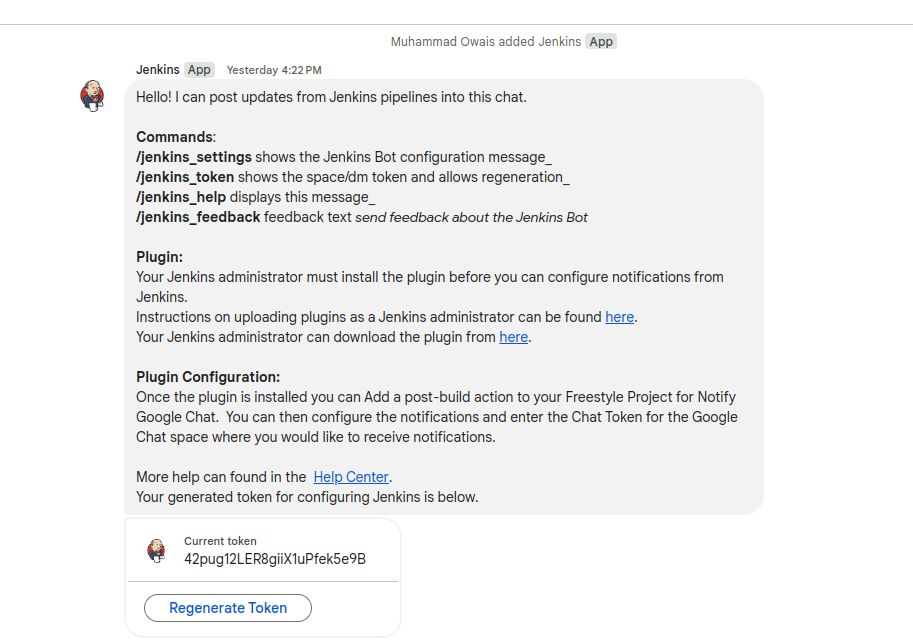
5. Once the bot is added, it will automatically send a message to the workspace containing a token and a link to download the Jenkins plugin google-hangouts-chat-notifier.hpi.
Keep this token handy as you’ll need it later.
Step 2: Install the Jenkins Plugin
1. Log in to your Jenkins server with administrator privileges.
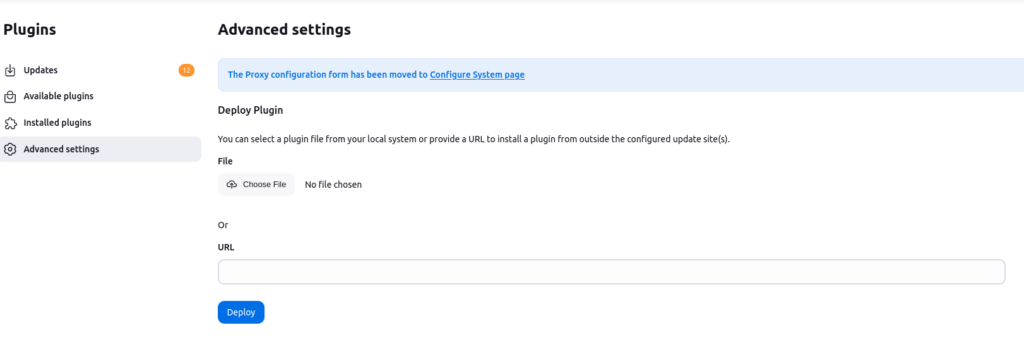
2. Go to Manage Jenkins > Manage Plugins.
3. Under the Advanced tab, click Upload Plugin and choose the google-hangouts-chat-notifier.hpi plugin file you downloaded earlier.
Let's Build Something Great Together
Ready to transform your idea into a powerful software solution? Talk to our experts and get a free consultation.
Contact Us
4. After uploading, Jenkins will install the plugin. Once installed, restart Jenkins to apply the changes.
Step 3: Configure the Jenkins Job for Notifications
1. Go to the Pipelines or Jobs section in Jenkins, and select the pipeline you want to configure for notifications (for example, “Dev”).
2. Click on Configure in the left-hand menu for the selected pipeline.
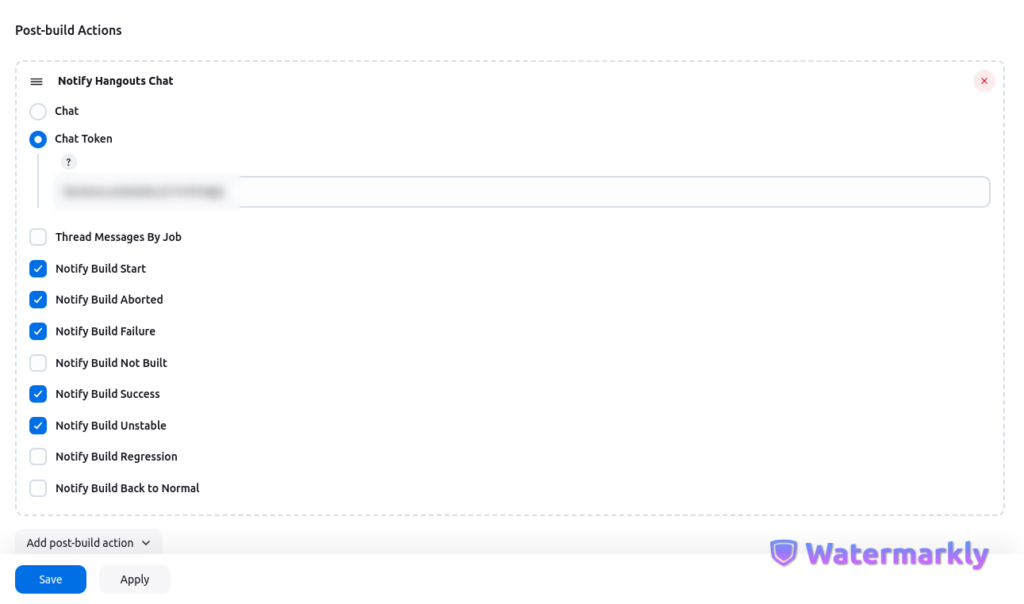
3. Scroll down to the Post-build Actions section.
4. Click on Add Post-build Action and select Notify Hangouts Chat (the option provided by the plugin).
5. In the Chat Token field, paste the token you received from the Google Chat bot during installation.
6. Select the notification triggers you wish to use (for example, “Notify build start”, “Notify build failure”, etc.).
Step 4: Test the Configuration
1. After configuring the notification settings, save your changes and run the Jenkins build.
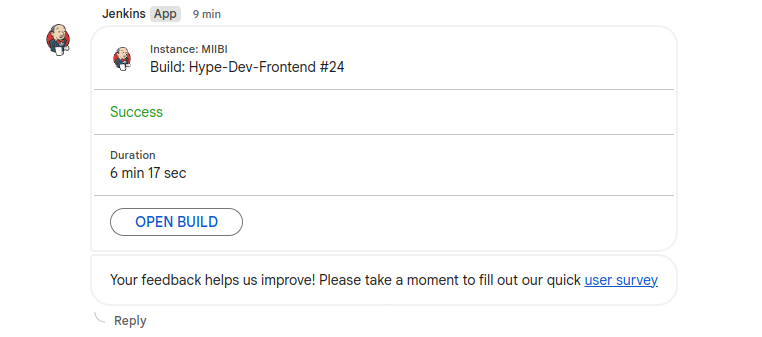
2. Once the build starts, you should see a notification in your Google Workspace chat, indicating the status of the build (e.g., “Build Started”, “Build Failed”, etc.).
Conclusion
Now your Jenkins builds are successfully integrated with Google Workspace! By following these steps, you can keep your team updated in real-time about build statuses, helping you improve collaboration and streamline communication.
This integration can be customized to notify your team on various build events, ensuring you’re always in the loop regarding your CI/CD pipeline’s progress.

From ETL to ELT: The Evolution of Data Pipelines in Modern Analytics
How and why data pipeline architecture evolved from ETL to ELT.
Read More
Bridge View Hybrid: A Smarter Path to Bringing Web Apps to Mobile
Learn how the Bridge View Hybrid architecture uses a React Native shell and WebView to launch iOS and Android apps faster, cheaper, and with less risk.
Read More
10 AI Prompts Every Manual Tester Should Have in Their QA Toolkit
Discover 10 practical AI prompts manual testers can use to improve test coverage, find edge cases, analyze bugs, strengthen regression testing, and become more effective QA engineers.
Read More
The Website Accessibility Revolution: Why You Can't Afford to Ignore WCAG 2.2
Website accessibility starts with WCAG 2.2. Learn how accessible design, development, QA, and testing can help create websites that work for everyone.
Read More
Race Conditions in Web Applications: Why Correct Code Produces Wrong Results
Race conditions silently corrupt data when concurrent requests touch shared state at the wrong time. Learn how atomic updates, transactions, idempotency, and locking keep your application correct under real concurrency.
Read More
AI Writes the Code • Stop Blindly Shipping It Without Reviewing the Engineering
A practical perspective on AI-generated code, scalability, maintainability, and engineering judgment and why engineering review still owns the final decision.
Read More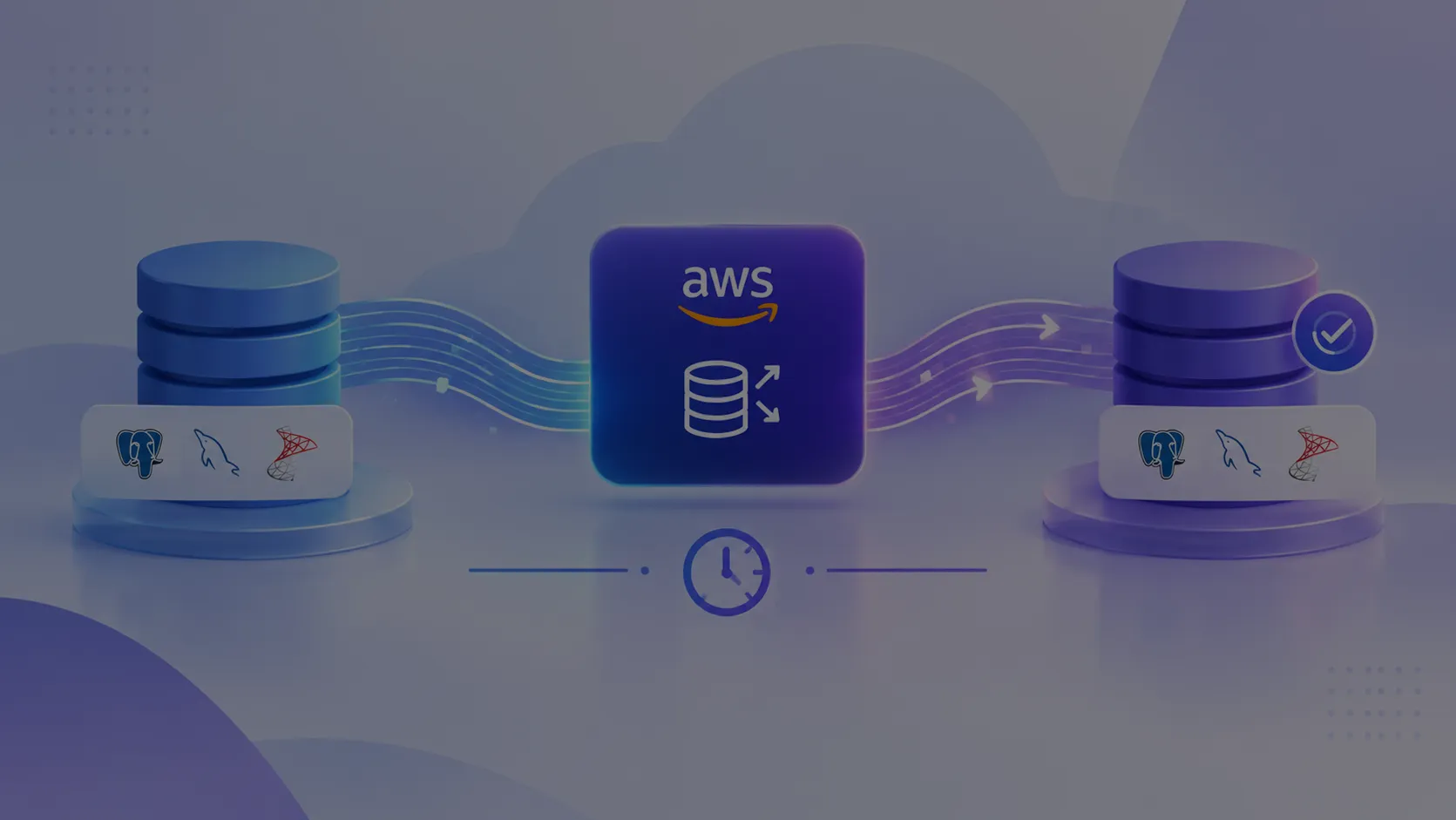
Migrating Databases with AWS DMS With Nearly Zero Downtime
Learn how to migrate databases using AWS DMS with nearly zero downtime using Full Load, CDC, validation, monitoring, and controlled cutover.
Read More
How to Add LiveKit Video Calling to a Next.js App
Add embedded video & audio calling to Next.js with LiveKit Cloud. Compared vs Twilio, Daily, Agora, Zoom — plus token auth, guests & recording.
Read More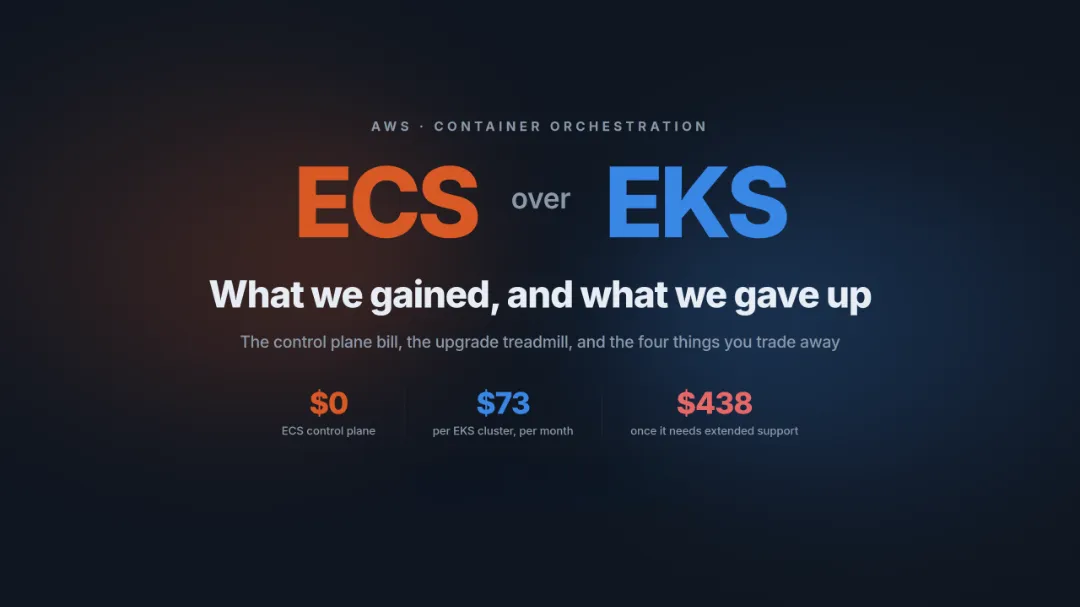
We chose ECS over EKS: what we gained and what we gave up
An honest comparison of ECS vs EKS the costs, tradeoffs, and real-world reasoning behind choosing ECS for a production platform on AWS.
Read More