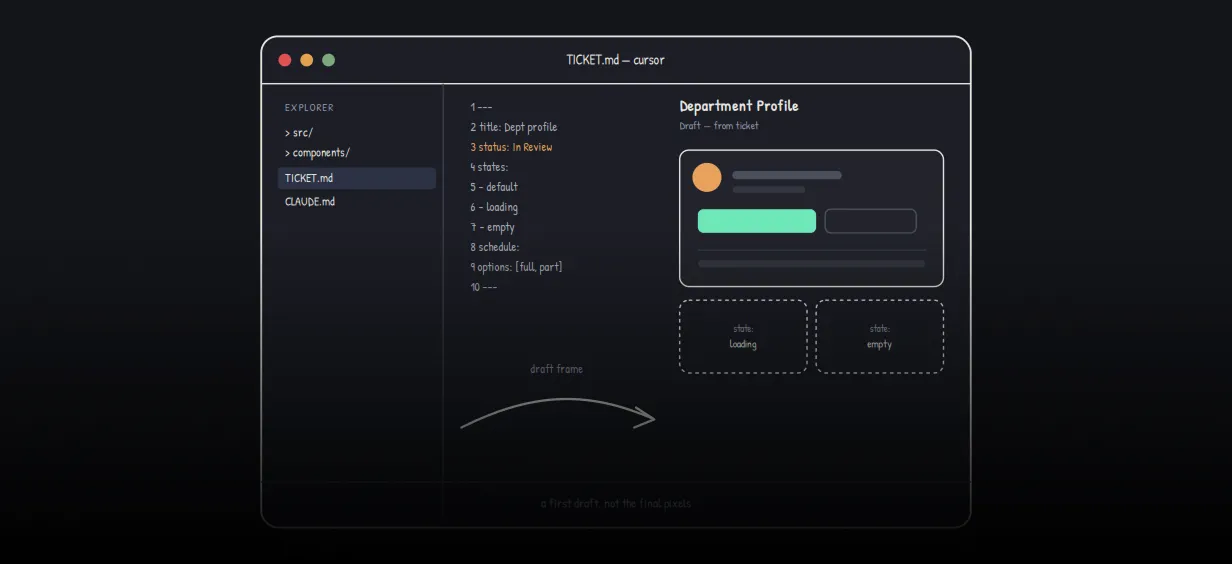
We stopped leaving the IDE to design. Here is our Cursor -> Figma flow

Got a project?
Let's discuss your project
The tab tax
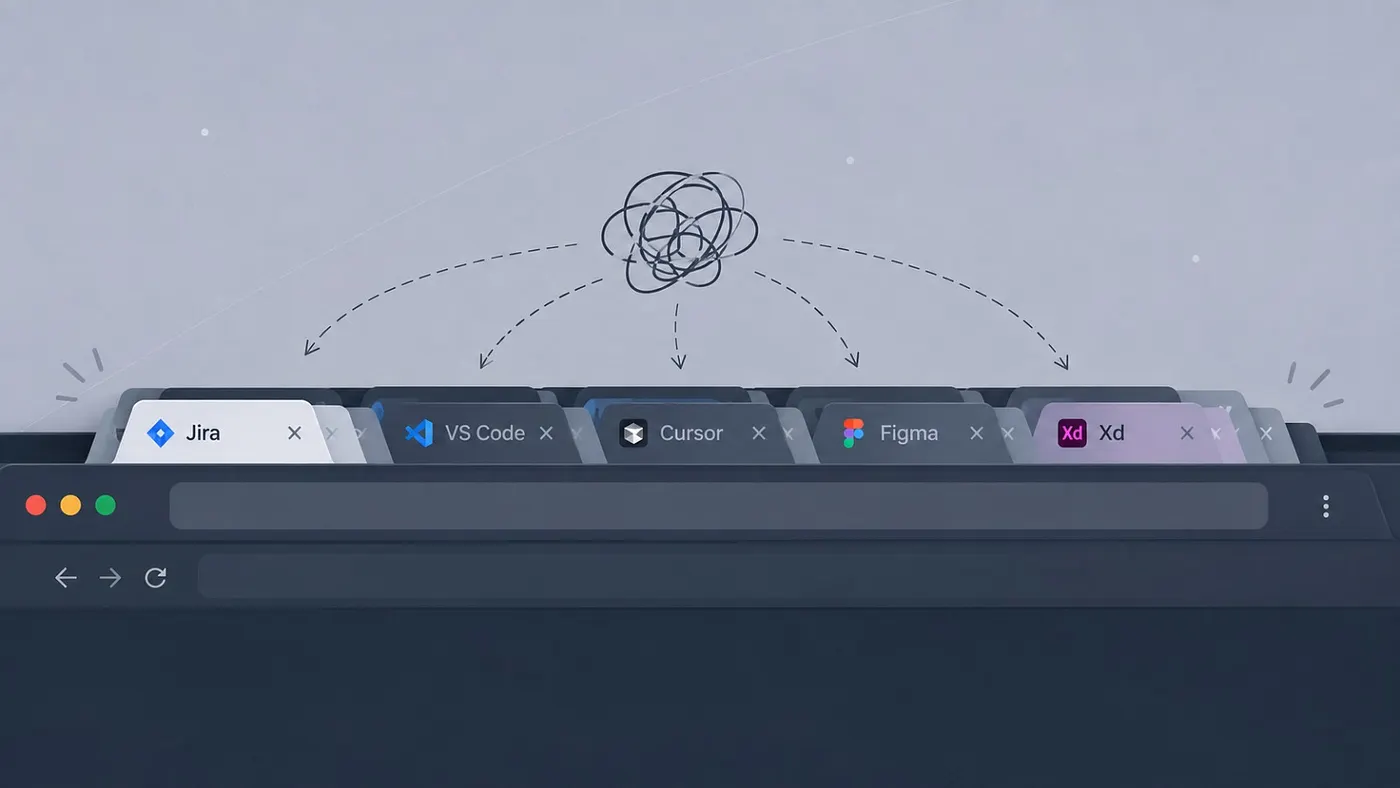
Every design ticket used to cost us four tabs.
Jira to read the ask. Code to see what actually exists. Figma to sketch the fix. Jira again to explain what we meant. Multiply that by a normal sprint and you’ve spent half your day just moving between places, not doing the work.
None of those hops is hard on its own. It’s the switching itself — losing the thread every time you alt-tab, that quietly wears you down.
That is why we built a Cursor Figma flow where Cursor Agent reads a Jira ticket, uses Figma MCP, and drafts first UI frames without endless tab switching. Below is how that workflow works, where it helps, and where it still fails.
The real job: a first draft, not final pixels
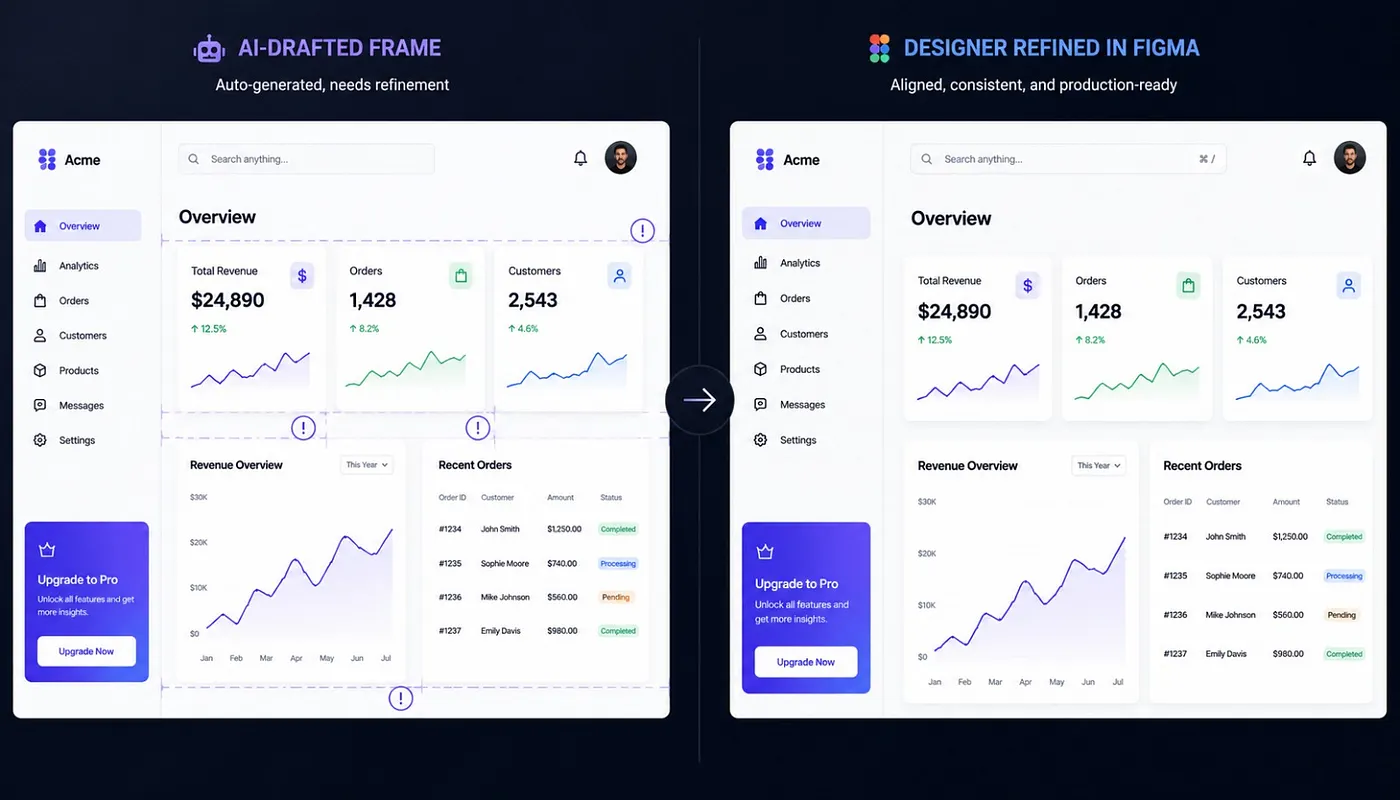
We had to get honest: we didn’t need Cursor to design. We needed it to understand the ticket faster and hand us something to react to instead of a blank canvas. That’s different from “make it client ready.” Once we stopped expecting that, the flow got useful. When that first draft is ready to become a real product, our custom software development services carry it across the finish line.
We don’t ask Cursor to finish the design. We ask it to help us see the ticket.
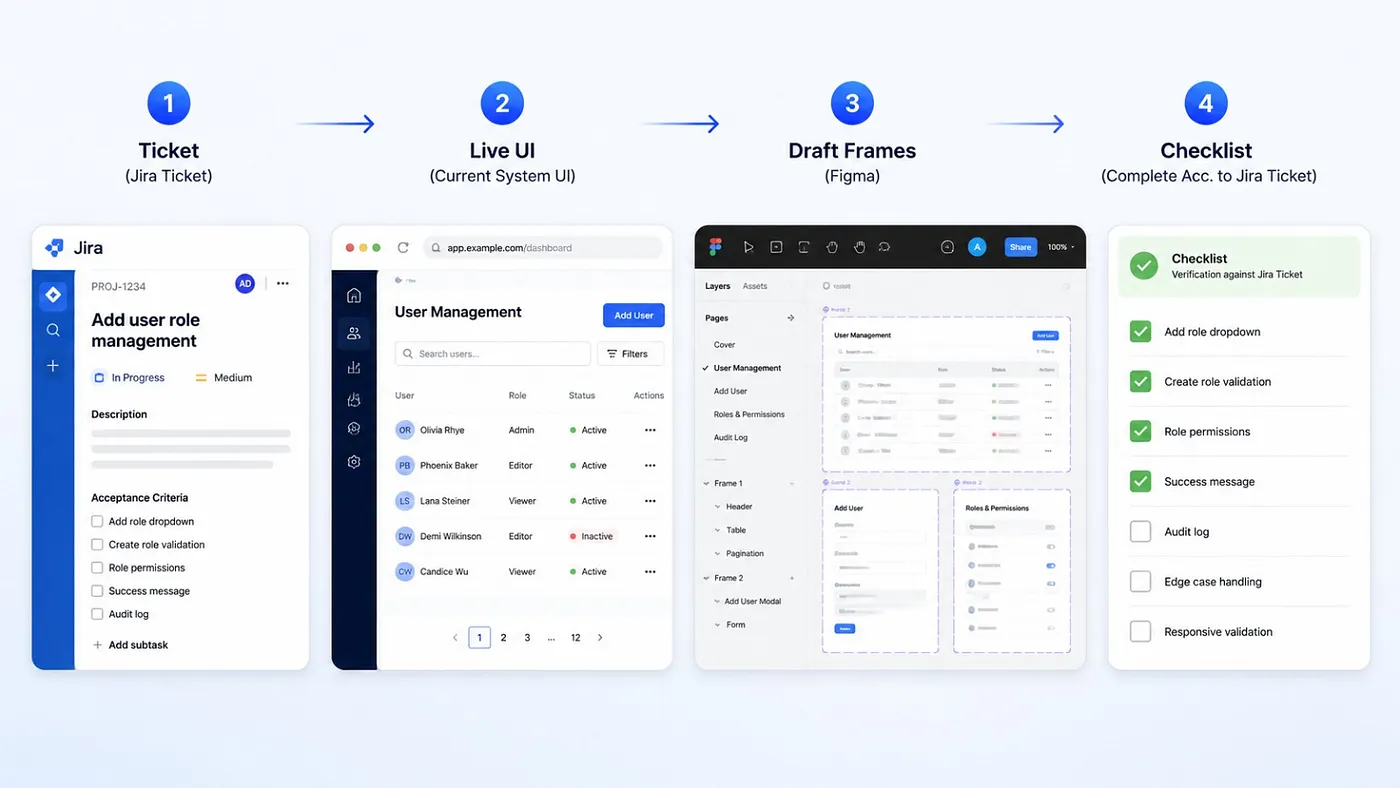
The Cursor to Figma flow in 4 steps
- Ticket in. Cursor Agent reads the Jira ticket. We keep this read only. It pulls the actual requirements, not just the summary line.
- Find the real UI. Don’t let Cursor invent the app. Start from existing Figma screens and the design system, a live app capture into Figma, or design system components from code. Then Figma MCP builds the draft from that.
- Draft frames out. Figma MCP creates frames from that shell, roughly to the ticket, with different states on separate frames.
- Checklist for sanity. A simple ticket versus design checklist so we can see what is covered and what is missing.
Before you run the flow
Before this flow works, connect two MCPs in Cursor.
For Figma, install the Figma plugin or add the Figma MCP server in Cursor Settings under Tools and MCP. Then sign in with the Figma account that can edit your file.
For Jira, connect the Atlassian MCP and sign in so the Agent can read tickets.
Once both show as connected, you can run the 4 steps above. This post focuses on the flow. Keep the full install steps in a separate setup note if you need more detail.
Where it shines
We’ve used this on real work like profile pages with department states and scheduling flows with multiple option states. It helps in a few simple ways.
Let's Build Something Great Together
Ready to transform your idea into a powerful software solution? Talk to our experts and get a free consultation.
Contact Us
- It catches buried ticket requirements that are easy to miss late on a Friday.
- It’s fast. A ticket becomes a first frame in minutes, not a full design session.
- It catches gaps early. It works off real UI ground truth, not memory: existing Figma screens, a live capture, or the design system. So when a ticket assumes something the product no longer has, we find out before a designer sinks an hour into it. If the Figma file already has a design system and older screens, drafts also stay closer to the real product. Still rough, but grounded.
That last one alone has saved us a few “wait, that component doesn’t exist anymore” moments.
Where it falls short
Now the honest part.
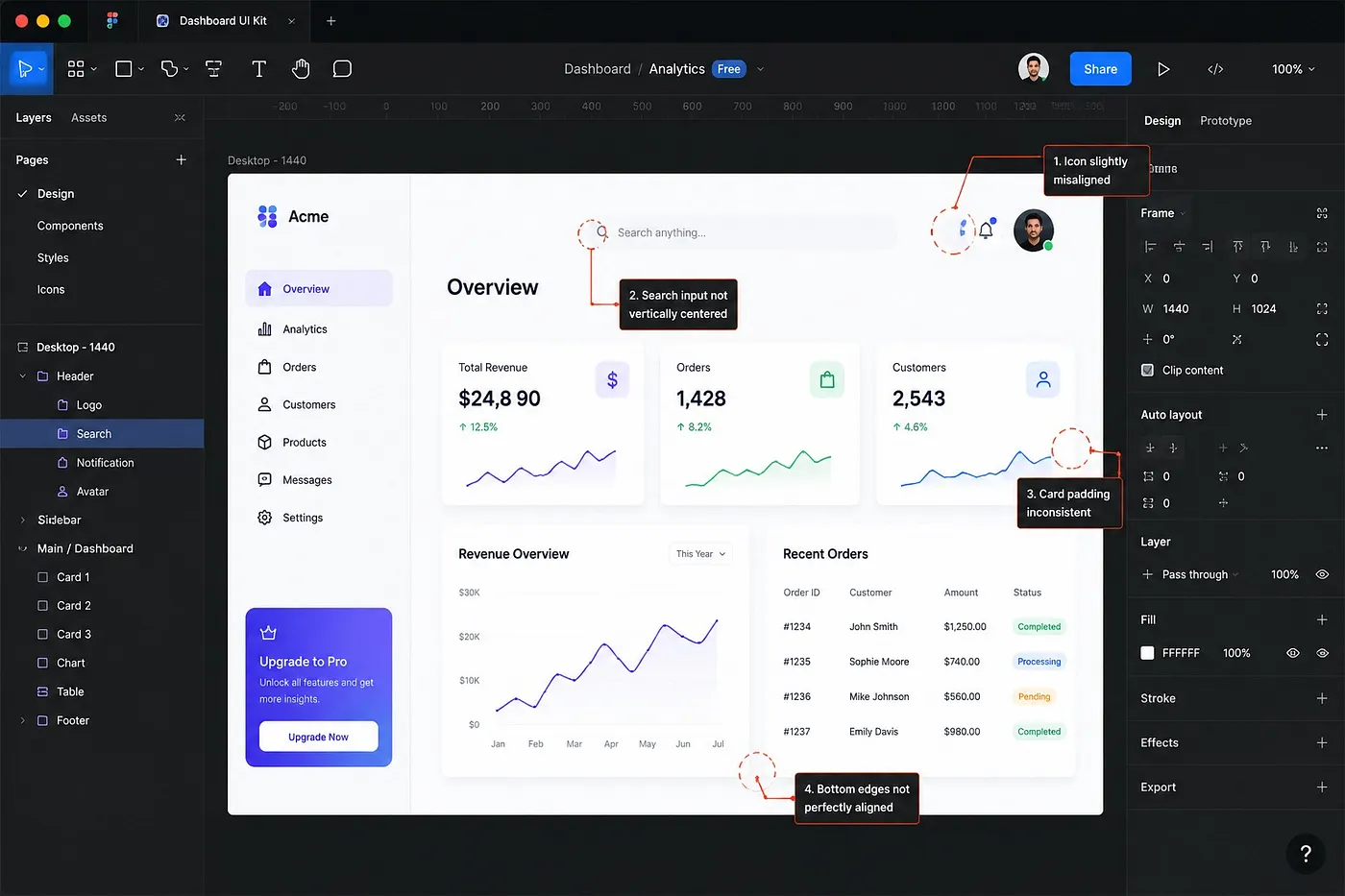
Fields get clipped. Content lands above the stepper instead of after it. Some fields look like real controls but are only mid-fi placeholders.
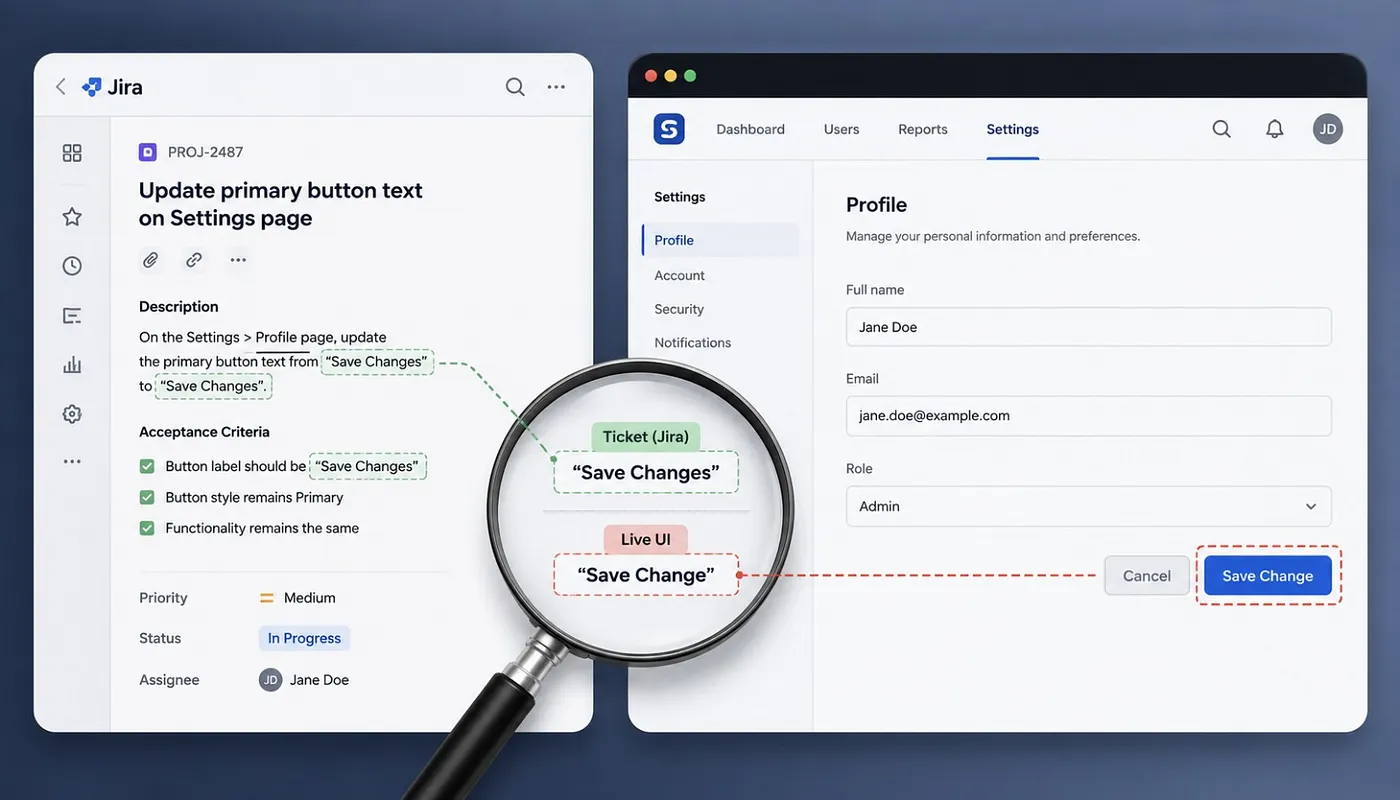
The checklist is the quiet failure: it marks something Done when it exists on the frame but is not client ready. Done and done-done are not the same thing.
Prompt quality matters. This is a starting point, not polished design. A vague prompt can make things worse: extra fields, messy spacing, and more cleanup than starting fresh.
A lazy prompt gives you a lazy or messy frame.
It also costs more tokens than a short text prompt. Fair trade for the time saved, but real. Clear prompts cost less because you redo less. For teams weighing the same trade-off, our AI-assisted design practice helps you set these workflows up right.
Setup matters after the happy path too. You need Figma MCP signed in, a target Figma file, ideally a design system with existing screens, and a clear ticket. Without that, Cursor guesses again.
Two gotchas matter most. Sign into Figma MCP with the same Figma account that can edit the file. And free Figma Starter has low MCP limits; after a few screens, calls can stop for the month. A paid Full or Dev seat is safer for real work.
None of this makes the tool useless. “Looks done” is just a prompt to look closer.
In the end, still ours
The pitch was never “AI designs your product.” It’s smaller and more useful: get to a shared understanding faster, then let humans polish. That’s exactly what our UI/UX design services are built around.
We’re not skipping the thinking. We’re skipping the parts that were never thinking: re-reading, re-explaining, and the four tabs.
What’s left is the actual design work. And that part’s still ours.
The Agent helps us get to a shared picture faster. The design judgment stays human.

From ETL to ELT: The Evolution of Data Pipelines in Modern Analytics
How and why data pipeline architecture evolved from ETL to ELT.
Read More
Bridge View Hybrid: A Smarter Path to Bringing Web Apps to Mobile
Learn how the Bridge View Hybrid architecture uses a React Native shell and WebView to launch iOS and Android apps faster, cheaper, and with less risk.
Read More
10 AI Prompts Every Manual Tester Should Have in Their QA Toolkit
Discover 10 practical AI prompts manual testers can use to improve test coverage, find edge cases, analyze bugs, strengthen regression testing, and become more effective QA engineers.
Read More
The Website Accessibility Revolution: Why You Can't Afford to Ignore WCAG 2.2
Website accessibility starts with WCAG 2.2. Learn how accessible design, development, QA, and testing can help create websites that work for everyone.
Read More
Race Conditions in Web Applications: Why Correct Code Produces Wrong Results
Race conditions silently corrupt data when concurrent requests touch shared state at the wrong time. Learn how atomic updates, transactions, idempotency, and locking keep your application correct under real concurrency.
Read More
AI Writes the Code • Stop Blindly Shipping It Without Reviewing the Engineering
A practical perspective on AI-generated code, scalability, maintainability, and engineering judgment and why engineering review still owns the final decision.
Read More
Migrating Databases with AWS DMS With Nearly Zero Downtime
Learn how to migrate databases using AWS DMS with nearly zero downtime using Full Load, CDC, validation, monitoring, and controlled cutover.
Read More
How to Add LiveKit Video Calling to a Next.js App
Add embedded video & audio calling to Next.js with LiveKit Cloud. Compared vs Twilio, Daily, Agora, Zoom — plus token auth, guests & recording.
Read More
We chose ECS over EKS: what we gained and what we gave up
An honest comparison of ECS vs EKS the costs, tradeoffs, and real-world reasoning behind choosing ECS for a production platform on AWS.
Read More