
How to Split a Multi-Document PDF Using JavaScript and Google Cloud Document AI

Got a project?
Let's discuss your project
Introduction
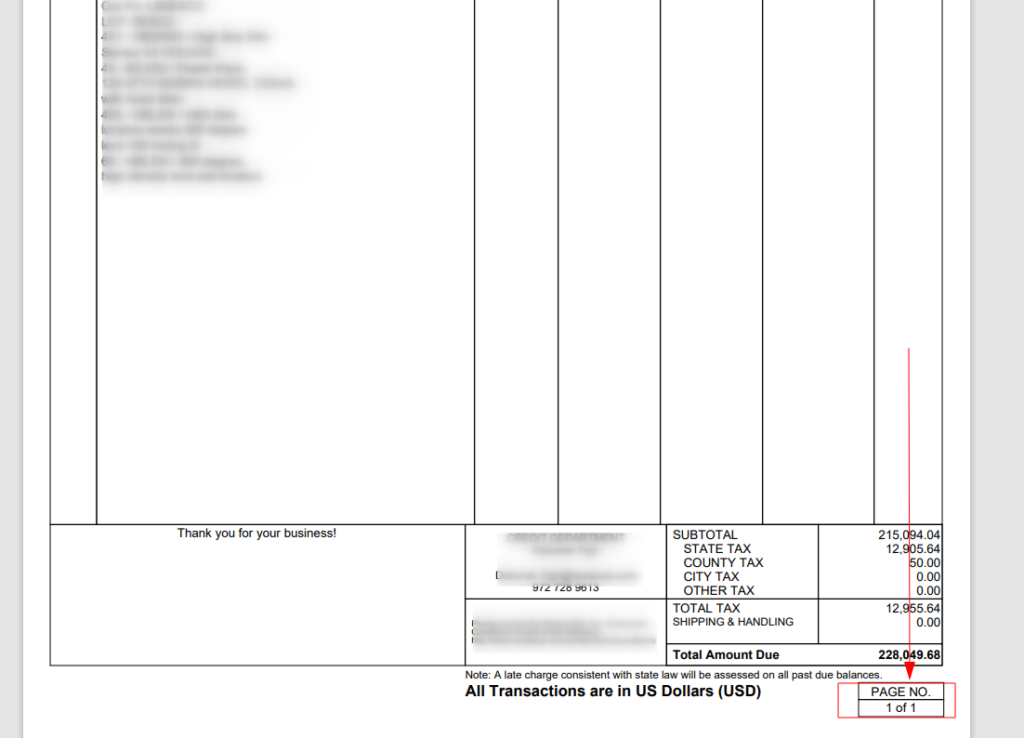
In this tutorial, I will guide you through a process of splitting a PDF that contains multiple documents using JavaScript, Google Cloud’s Document AI, and the pdf-lib library. This feature is useful when you have a PDF with several documents, each identified by page numbers (e.g., “Page 1 of 2” for the first document, “Page 1 of 3” for the second document, etc.). Document AI will help extract page number data, and then we’ll split the PDF accordingly.
Step 1: Understanding the Problem
Consider a PDF with multiple documents, each identified by page numbers:
- The first document has 2 pages, labeled “Page 1 of 2”, “Page 2 of 2”.
The second document has 3 pages, labeled “Page 1 of 3”, “Page 2 of 3”, “Page 3 of 3”. We’ll use OCR (Optical Character Recognition) to extract these page numbers and split the PDF into separate files for each document.
Step 2: Setting Up Google Cloud Document AI
To OCR the page numbers, we will use Google Cloud Document AI’s Custom Extractor.
1. Create a Google Cloud Account if you don’t have one.
Let's Build Something Great Together
Ready to transform your idea into a powerful software solution? Talk to our experts and get a free consultation.
Contact Us
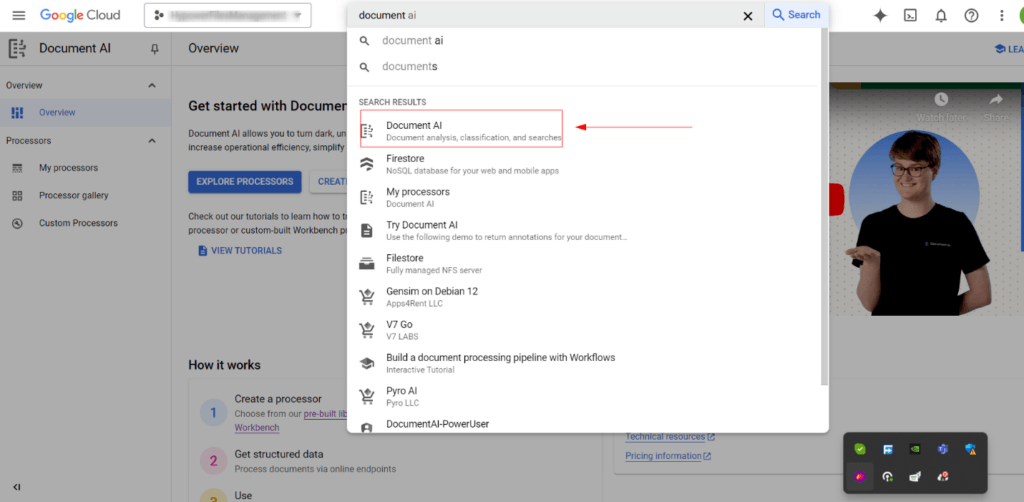
2. Set up Document AI by searching for it in the GCP Console
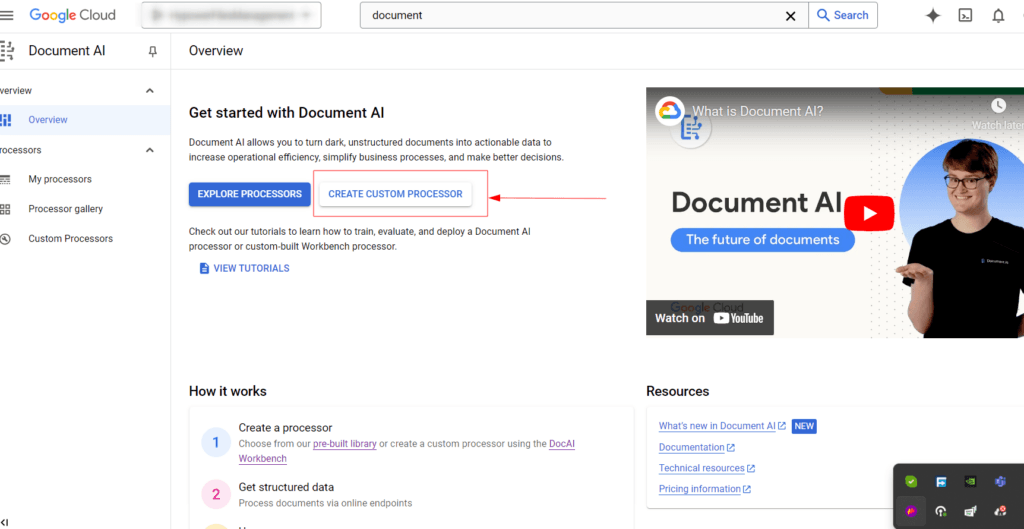
3. Create a Custom Processor by selecting the Custom Extractor model.
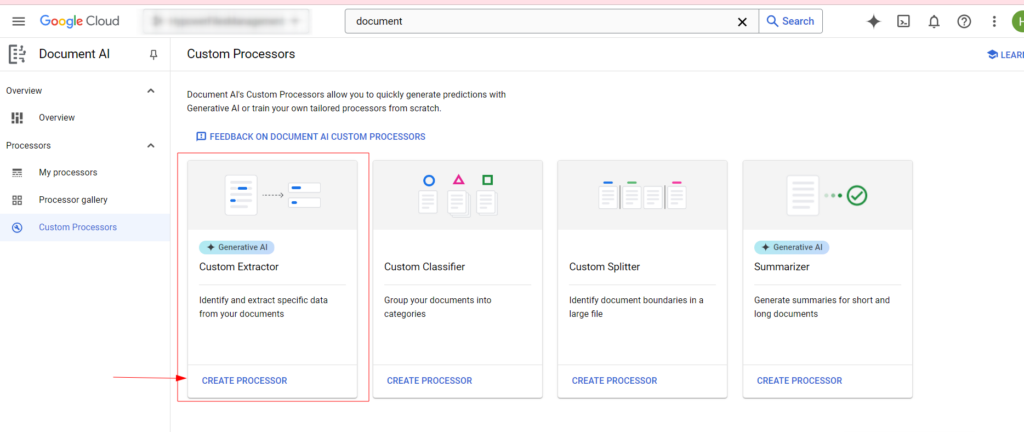
4. Select Custom extractor as our processor.
5. Upload Training Documents: Upload sample PDFs to train our processor .
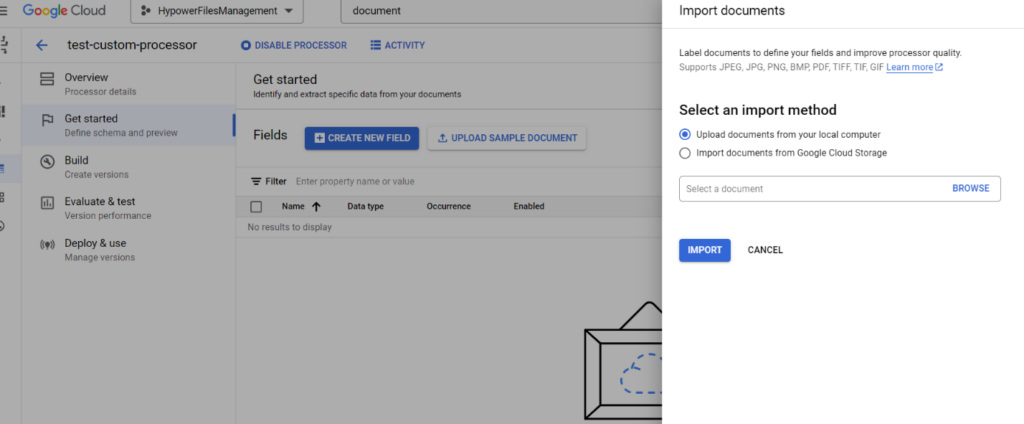
6. Create Labels: Annotate the page numbers and total page count fields, creating two labels: page_no and page_total. For optimal accuracy, label at least 100 pages across 20 documents.
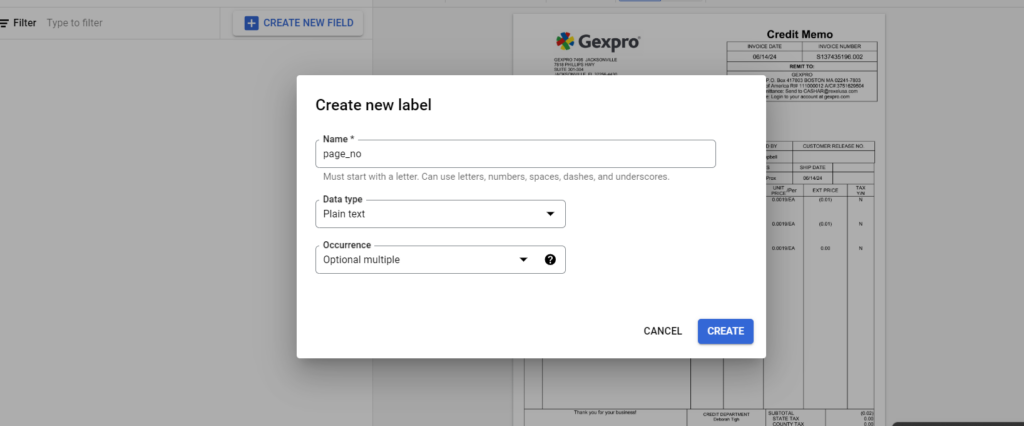
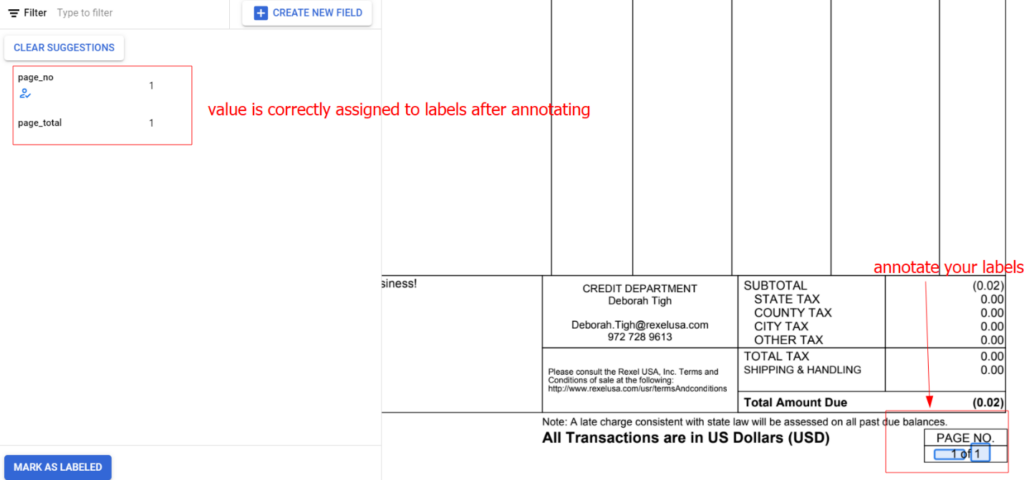
7. Train and Deploy the model.
Step 3: Extracting Page Numbers from the PDF Using Document AI
Once the processor is trained and deployed, you can extract labeled data like page numbers and total pages from the PDF. Here’s how we do it in JavaScript:
1const name = `projects/${projectId}/locations/${location}/processors/${processorId}`;2const buffer = await getTheArrayBufferFromPdfUrl(s3Url);3const encodedImage = Buffer.from(buffer).toString('base64');45const request = {6 name,7 rawDocument: {8 content: encodedImage,9 mimeType: 'application/pdf',10 },11};1213const [result] = await client.processDocument(request);14const { document } = result;15const { entities } = document;16const pages = formatData(entities);17const pagesToSplit = getPdfPagesToSplit(pages);
This function organizes the extracted data into a structured array containing each page’s number and total page count.
Step 4: Identifying Document Boundaries
We then determine the starting and ending pages for each document inside the PDF:
1getPdfPagesToSplit = (pages) => {2 const pdfPages = [];3 let count = 0;4 let skipCount = 0;56 for (const page of pages) {7 count++;8 if (skipCount) {9 skipCount--;10 continue;11 }1213 if (page.page_total == 1) {14 pdfPages.push({ number: +page.number + 1, start: count, end: count });15 } else if (page.page_total > 1) {16 skipCount = page.page_total - 1;17 pdfPages.push({ number: +page.number + 1, start: count, end: count + +page.page_total - 1 });18 }19 }2021 return pdfPages;22};2324 },25};2627const [result] = await client.processDocument(request);28const {document} = result;29const {entities} = document;30const pages = formatData(entities);31const pagesToSplit = getPdfPagesToSplit(pages);
Step 5: Splitting the PDF Using pdf-lib
Once we have the start and end pages, we can split the PDF using pdf-lib:
1extractPdfPage = async (arrayBuff, pageToSplit) => {2 const pdfSrcDoc = await PDFDocument.load(arrayBuff);3 const pdfNewDoc = await PDFDocument.create();4 const pages = await pdfNewDoc.copyPages(pdfSrcDoc, range(pageToSplit.start, pageToSplit.end));5 pages.forEach(page => pdfNewDoc.addPage(page));67 const newPdf = await pdfNewDoc.save();8 return newPdf;9};
Here, pdf-lib copies and saves the pages of each document as a new PDF.
Step 6: Upload or Download the Split PDFs
Now, we can take the split PDFs from SplittedPdfs and either upload them to a cloud service or download them to the user’s machine:
1const SplittedPdfs = [];2for (const pageToSplit of pagesToSplit) {3 const splittedPdf = await extractPdfPage(imageFile, pageToSplit);4 SplittedPdfs.push(splittedPdf);5}6// Now you can use SplittedPdfs as per your needs.
Conclusion
This tutorial demonstrates how to split a multi-document PDF using JavaScript, Document AI, and pdf-lib. We covered setting up Document AI, extracting page numbers, and splitting the PDF based on those page numbers. With these steps, you can easily implement this feature in your own applications.

Bridge View Hybrid: A Smarter Path to Bringing Web Apps to Mobile
Learn how the Bridge View Hybrid architecture uses a React Native shell and WebView to launch iOS and Android apps faster, cheaper, and with less risk.
Read More
10 AI Prompts Every Manual Tester Should Have in Their QA Toolkit
Discover 10 practical AI prompts manual testers can use to improve test coverage, find edge cases, analyze bugs, strengthen regression testing, and become more effective QA engineers.
Read More
The Website Accessibility Revolution: Why You Can't Afford to Ignore WCAG 2.2
Website accessibility starts with WCAG 2.2. Learn how accessible design, development, QA, and testing can help create websites that work for everyone.
Read More
Race Conditions in Web Applications: Why Correct Code Produces Wrong Results
Race conditions silently corrupt data when concurrent requests touch shared state at the wrong time. Learn how atomic updates, transactions, idempotency, and locking keep your application correct under real concurrency.
Read More
AI Writes the Code • Stop Blindly Shipping It Without Reviewing the Engineering
A practical perspective on AI-generated code, scalability, maintainability, and engineering judgment and why engineering review still owns the final decision.
Read More
Migrating Databases with AWS DMS With Nearly Zero Downtime
Learn how to migrate databases using AWS DMS with nearly zero downtime using Full Load, CDC, validation, monitoring, and controlled cutover.
Read More
How to Add LiveKit Video Calling to a Next.js App
Add embedded video & audio calling to Next.js with LiveKit Cloud. Compared vs Twilio, Daily, Agora, Zoom — plus token auth, guests & recording.
Read More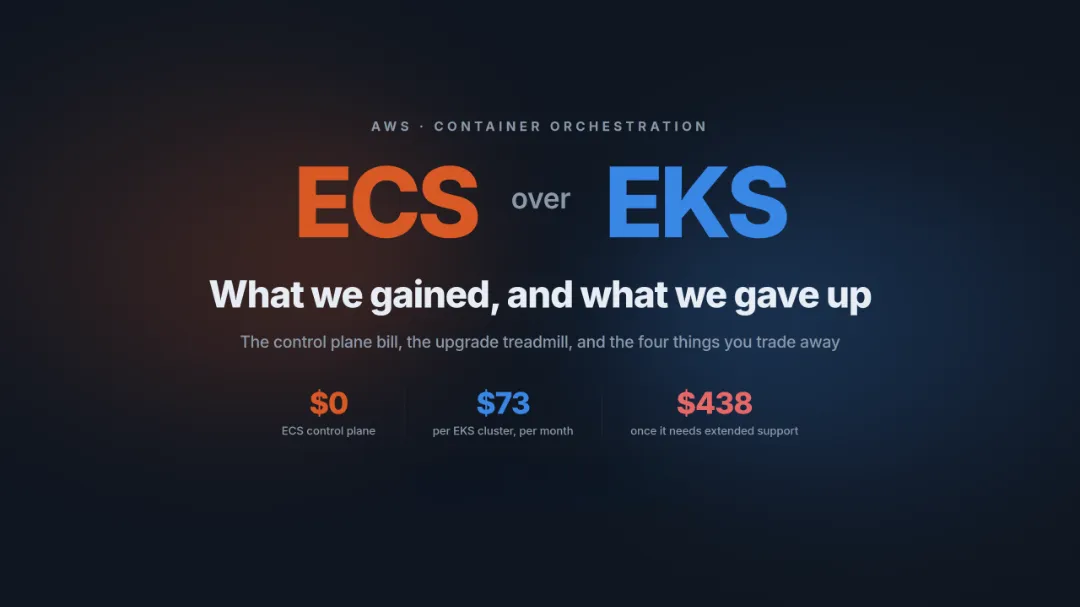
We chose ECS over EKS: what we gained and what we gave up
An honest comparison of ECS vs EKS the costs, tradeoffs, and real-world reasoning behind choosing ECS for a production platform on AWS.
Read More
Upgrading Legacy Systems: From Outdated Technology to Competitive Advantage
Learn how to upgrade legacy systems through application modernization, API integration, cloud migration, security improvements, and incremental system upgrades without disrupting business operations.
Read More