Configure Self Hosted GitLab Repository Mirroring

Introduction
Self hosted GitLab Repository Mirroring is a powerful feature that automatically synchronizes repositories between GitLab and external Git providers. When the destination is AWS services such as AWS CodeCommit, authentication is commonly performed using an AWS IAM user’s Git credentials over SSH.
In this guide, we’ll walk through the process of configuring repository mirroring by generating an SSH key, associating it with an AWS IAM user, and updating GitLab’s mirror credentials through the Rails console.
Prerequisites
Before starting, ensure you have:
- A self-managed GitLab instance
- An AWS account
- An IAM user with permission to access the target Git repository
- SSH access to the GitLab server
- Administrator access to GitLab
Step 1: Generate an SSH Key
Log in to your Linux server and generate a new SSH key pair.
1ssh-keygen -t rsa -b 4096 -C "gitlab-mirror"
This command creates:
- Private key
- Public key
The public key will be uploaded to AWS.
Step 2: Upload the Public Key to the AWS IAM User
- 1Open the AWS Management Console.
- 2Navigate to IAM.
- 3Select the IAM user used for repository access.
- 4Open the Security credentials tab.
- 5Scroll to AWS CodeCommit SSH keys.
- 6Upload the generated public key.
AWS assigns an SSH Key ID similar to:
1APKAEIBAERJR2EXAMPLE
Keep this SSH Key ID. You’ll need it later.
Step 3: Configure Repository Mirroring in GitLab
Create the repository mirror from the GitLab project as usual.
If the mirror was configured with an incorrect SSH Key ID or needs updating, you can modify it directly from the GitLab Rails console.
Step 4: Access the GitLab Rails Console
Locate the GitLab Rails executable:
1which gitlab-rails
Start the Rails console:
1sudo gitlab-rails console
Step 5: Find the Project
Replace the project number with your GitLab project ID.
1project = Project.find(PROJECT_ID)
Example:
1project = Project.find(25)
Retrieve the repository mirror:
1mirror = project.remote_mirrors.first
Step 6: Inspect Mirror Credentials
To understand which methods are available:
1mirror.methods.grep(/credential|user|password|update|save/)
You can also inspect the credentials object:
1mirror.credentials
Step 7: Update the SSH Key ID
The username used for AWS CodeCommit over SSH is the SSH Key ID assigned by AWS, not the IAM username.
Update the mirror with the correct SSH Key ID.
1mirror.credentials.user = "YOUR_AWS_SSH_KEY_ID"
Example:
1mirror.credentials.user = "APKAEIBAERJR2EXAMPLE"
Save the changes:
1mirror.save!
If no errors are returned, the mirror configuration has been updated successfully.
Verify Repository Mirroring
After saving the new SSH Key ID:
- 1Open your GitLab project.
- 2Navigate to Settings → Repository → Mirroring repositories.
- 3Trigger a manual update or push a commit.
- 4Verify that synchronization completes successfully.
Common Issues
Authentication Failed
- Verify that the SSH Key ID is correct.
- Ensure the corresponding private key exists on the GitLab server.
- Confirm that the public key uploaded to AWS matches the private key.
Mirror Doesn’t Sync
- Verify the remote repository URL.
- Check GitLab Sidekiq logs.
- Confirm the IAM user has the required AWS CodeCommit permissions.
Permission Denied (publickey)
This usually indicates:
- Incorrect private key
- Incorrect SSH Key ID
- Public key mismatch
- Missing IAM permissions
Best Practices
- Use a dedicated IAM user for Git repository access.
- Rotate SSH keys periodically.
- Grant only the minimum permissions required.
- Test the SSH connection before enabling mirroring.
- Regularly monitor mirror synchronization status in GitLab.
Conclusion
GitLab Repository Mirroring combined with AWS IAM authentication provides a secure and automated way to keep repositories synchronized. By generating an SSH key, uploading the public key to AWS, obtaining the AWS-assigned SSH Key ID, and updating the mirror credentials through the GitLab Rails console, you can quickly resolve authentication issues and maintain reliable repository synchronization.
This approach is especially useful when an SSH Key ID changes or an existing mirror needs to be updated without recreating the entire mirror configuration.
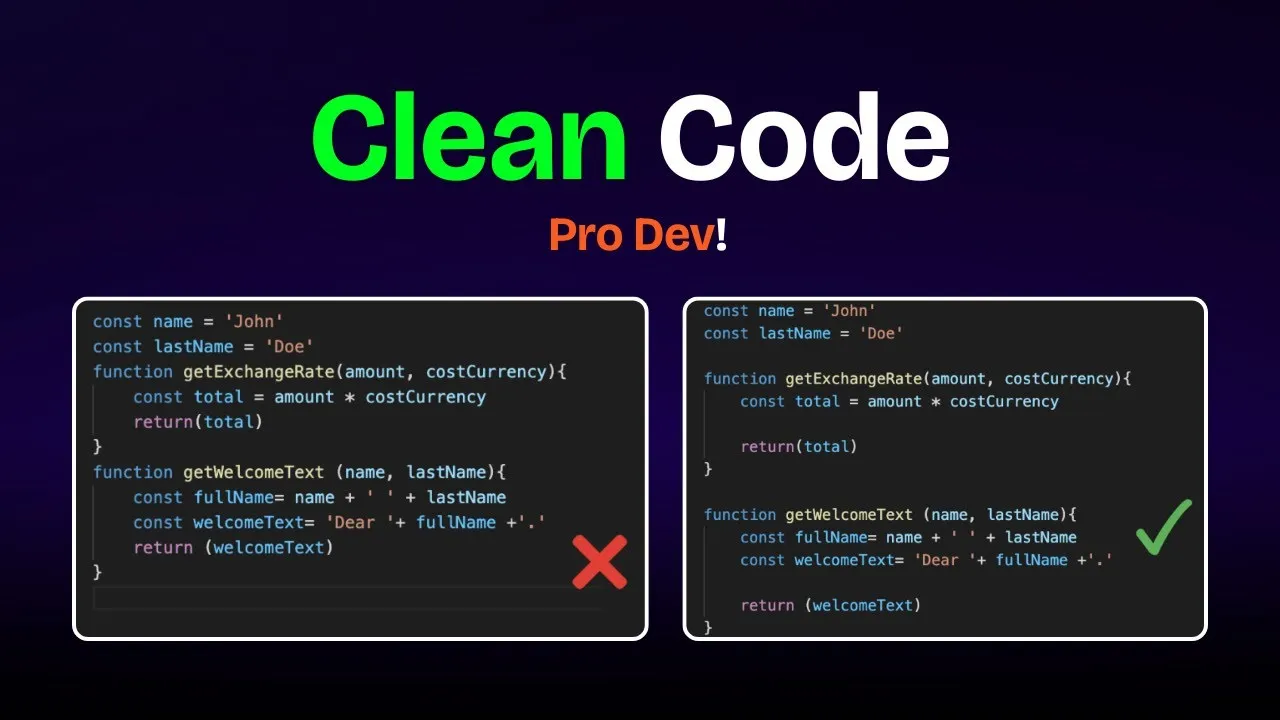
Clean Code vs. Overengineering: Where Should Developers Draw the Line?
Clean code reduces unnecessary complexity; overengineering invents it. A practical guide to using context, evidence, and the cost of change to know when to stop adding abstractions...
Read More
Kafka vs RabbitMQ vs AWS EventBridge: Choosing the Right Architecture Based on Business Requirements
Compare Kafka, RabbitMQ, and AWS EventBridge based on scalability, routing, event streaming, replay, infrastructure, and business requirements to choose the right architecture...
Read More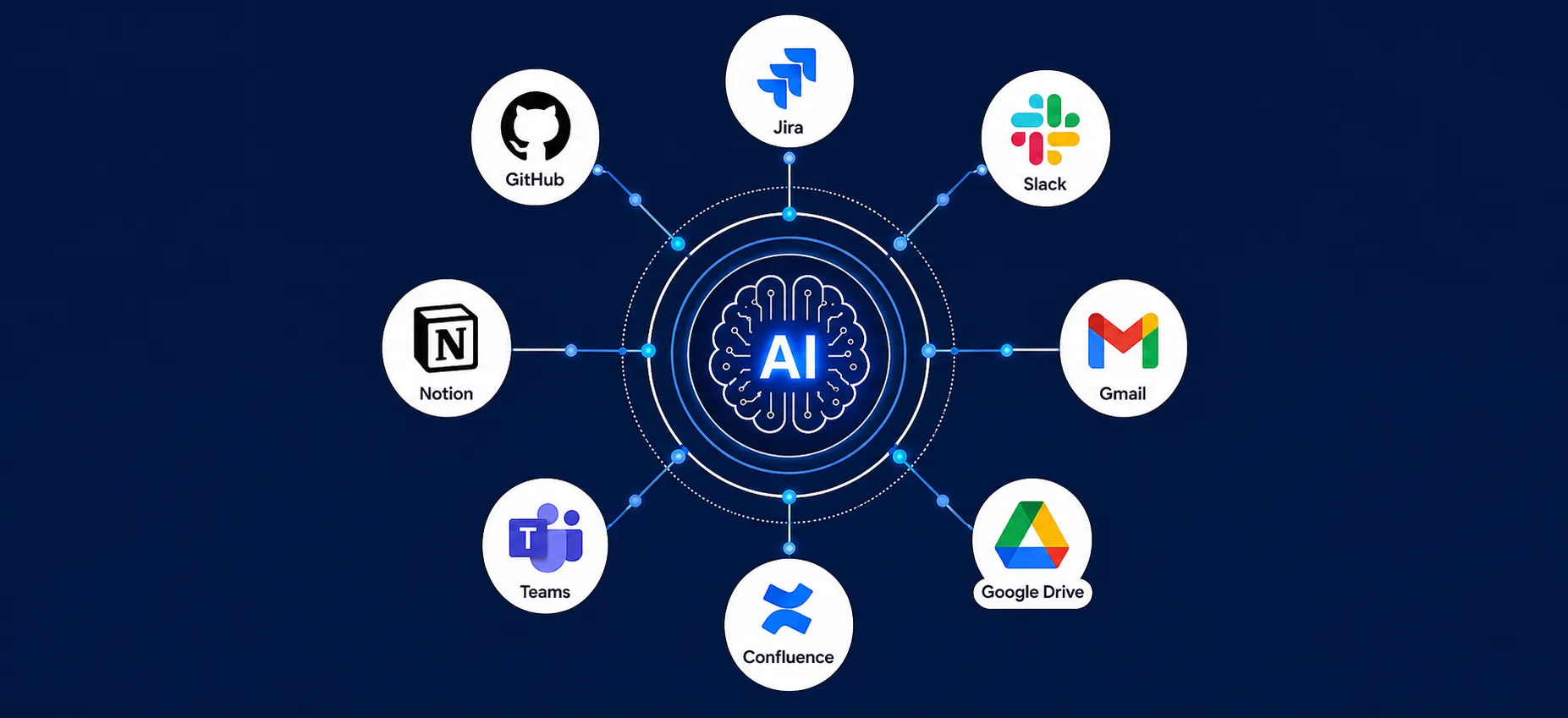
AI Integrations for QA Engineers
Learn how QA engineers can connect AI with Jira, GitHub, Slack, Notion and other tools to improve testing, bug tracking, reporting and QA productivity...
Read More
The Ultimate Guide to Amazon SES Setup with GoDaddy DNS
Learn how to set up Amazon SES with GoDaddy DNS. Complete step-by-step guide covering Easy DKIM, SPF, DMARC, custom MAIL FROM, and exiting the SES Sandbox...
Read More
AWS DevOps Agent Setup Guide with EC2
Learn how to set up AWS DevOps Agent with EC2, CloudWatch, IAM, and Agent Spaces for AI-assisted monitoring, incident investigation, and root-cause analysis...
Read More
Multi-Tenancy Patterns in DynamoDB: Silo, Pool, and Bridge Models
If you've already made the jump from a relational database to DynamoDB see our guide on moving relational data from SQL to DynamoDB...
Read More
We stopped leaving the IDE to design. Here’s our Cursor → Figma flow
Cursor drafts fast, catches gaps early, and still clips fields and breaks layouts. Here's the real pros-and-cons breakdown of our workflow...
Read More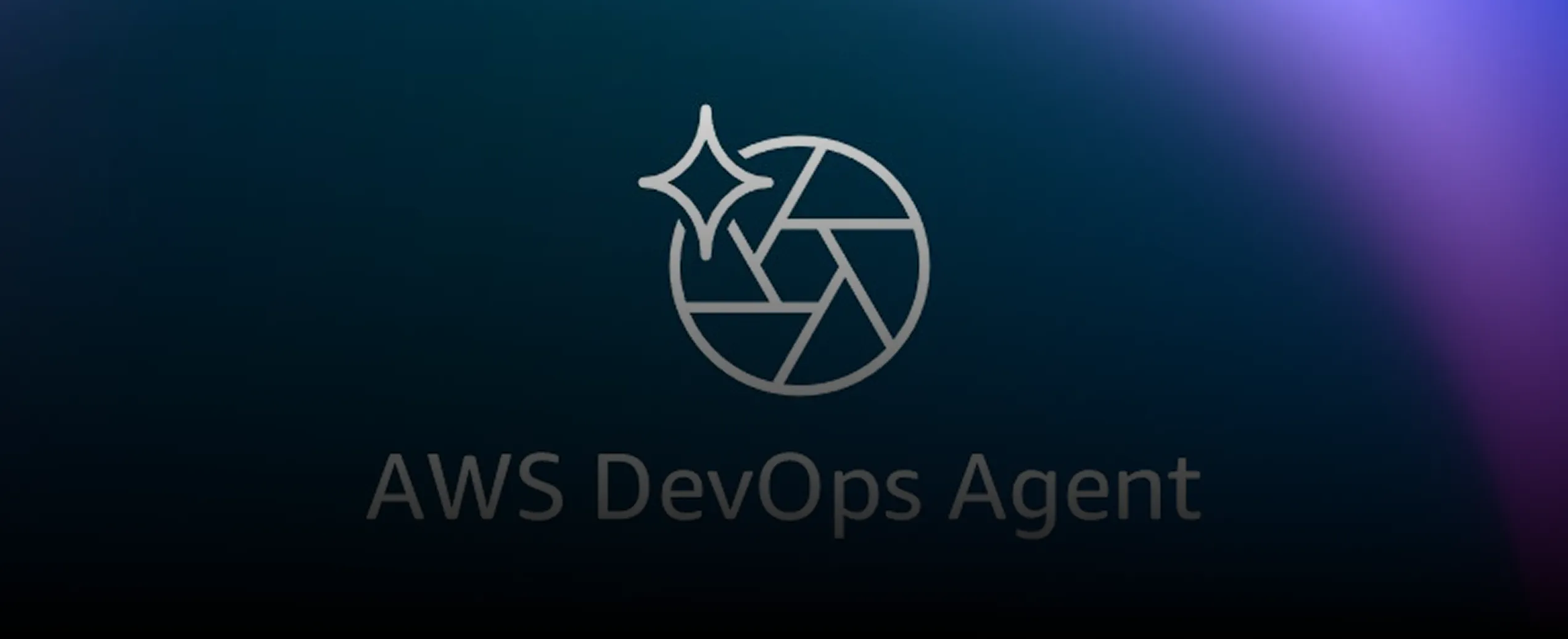
AWS DevOps Agent: How AI is Automating On-Call Incident Response
If you've ever been on call during a production outage, you know how stressful it can be. Alerts start firing, dashboards light up, and suddenly you're jumping between monitoring tools...
Read More
Catch Missing Images Before Deploy: A Simple Pre-Build Script for Next.js
How Omax Tech added a lightweight image validation gate to Next.js 15 builds on Vercel...
Read MoreReady to Work With Us?
Most engagements start with a 20-minute conversation. No pitch, no pressure - just an honest discussion about what you're building and whether we're the right fit.