Streamlining ETL (Part 1) – Setting Up AWS Glue and Snowflake with Security Best Practices

Introduction
In today’s modern data landscape, organizations rely on fast, secure, and automated pipelines to process and analyze data. Two major players that help achieve this are AWS Glue, a serverless ETL (Extract, Transform, Load) service from Amazon, and Snowflake, a highly scalable and cloud-native data warehouse.
This is Part 1 of a 2-part series where we will walk through integrating AWS Glue with Snowflake. In this post, we will focus on the foundational setup and security practices that are often overlooked but critical for building production-grade pipelines.By the end of this blog, you will:
- Understand why AWS Glue and Snowflake work well together.
- Set up all prerequisites, including IAM roles and Snowflake configurations.
- Learn why AWS Secrets Manager is preferred for credential management.
- Avoid common security pitfalls in AWS.
Why AWS Glue + Snowflake?
Combining these two gives you an efficient and flexible cloud-based ETL pipeline:
- 1Seamless Integration - AWS Glue can extract, transform, and load data directly into Snowflake.
- 2Performance & Cost Optimization – Glue’s serverless architecture ensures efficient ETL, while Snowflake optimizes storage and query performance.
- 3Handles Diverse Data Sources – AWS Glue supports multiple formats (CSV, JSON, Parquet, etc.), and Snowflake can efficiently import these formats and later query them.
- 4Automation & Orchestration – AWS Glue provides job scheduling and monitoring for Snowflake ETL tasks.
- 5Security & Compliance – Both services offer strong security (IAM roles, encryption, compliance certifications).
- 6Pay-as-You-Go Model – Cost-effective since Glue only charges for usage, and Snowflake charges based on compute and storage.
Prerequisites Checklist
Before getting your hands dirty with pipeline development, let’s first establish a solid environment.
AWS Account
Ensure you have an AWS account with permissions to:
- Create Glue Jobs & Connections.
- Create and manage IAM roles and Secrets Manager.
- Access to S3 buckets (source data location).
Snowflake Account
You’ll need:
- A Snowflake account (Standard or Enterprise edition).
- Access to create databases, schemas, tables.
- A role with adequate privileges (e.g., ACCOUNTADMIN for setup).
Centralized Secret Management for Glue ETL Pipelines: AWS Secrets Manager in Action
When building modern ETL pipelines, securely managing credentials is critical. Whether it’s Snowflake database credentials or API keys, hardcoding secrets directly in code or configuration files exposes your pipeline to security risks and operational inefficiencies.
AWS offers multiple options for handling secrets, such as Parameter Store and environment variables, but for production-grade ETL workflows, AWS Secrets Manager stands out as the most secure and scalable solution.
In this section, we will:
- Explore common methods for secret storage and their trade-offs.
- Understand why Secrets Manager is preferred for AWS Glue pipelines.
- Walk through a hands-on guide to securely store and retrieve credentials using Secrets Manager with Glue.
Options for Storing Credentials in AWS
Hardcoding Credentials (Not Recommended)
- Embed credentials directly into your Glue scripts or connection configs.
Risks
- Code repositories might expose secrets.
- Difficult to rotate secrets.
- High chance of human error.
AWS Systems Manager Parameter Store
- A secure service to store configuration data and secrets (supports plaintext or encrypted values via KMS).
- Pros:
- Free tier available.
- Integrated with many AWS services.
- Cons:
- No native support for automatic rotation of secrets.
- Glue requires additional steps to fetch secrets from Parameter Store.
AWS Secrets Manager (Recommended)
- A fully managed service specifically designed for secure secret storage and management (e.g., DB credentials, API keys).
Supports:
- Automatic rotation (via Lambda).
- KMS encryption.
- Native integrations with AWS Glue, Lambda, RDS, etc.
Pros:
- Built-in lifecycle management of secrets.
- Glue natively supports fetching from Secrets Manager in the UI.
- Supports JSON key/value structure (e.g., { “username”: “abc”, “password”: “xyz” }).
Cons:
Why AWS Secrets Manager is the Best Option
AWS Glue Native Integration
AWS Glue directly integrates with Secrets Manager:
- While setting up your Glue connection (e.g., JDBC for Snowflake), you can directly select your stored secret via dropdown—no additional code required.
Automatic Secret Rotation
- Secrets Manager can rotate secrets automatically using AWS Lambda functions (e.g., update Snowflake password every 30 days).
Built-in Encryption
- Secrets Manager encrypts secrets at rest using AWS KMS by default.
Access Control
- Fine-grained IAM permissions (e.g., only allowing Glue to read specific secrets) help enforce least privilege.
Auditing & Logging
- Logs every access and change via CloudTrail, allowing easy auditing for compliance (PCI-DSS, SOC 2, etc.).
Step-by-Step: How to Set Up Secrets Manager for Snowflake Credentials
Step 1: Go to AWS Secrets Manager
- Navigate to Secrets Manager from AWS Console.
- Click Store a new secret.
Step 2: Select Secret Type
- Choose Other type of secret (for custom credentials like Snowflake).
Step 3: Enter Secret Data
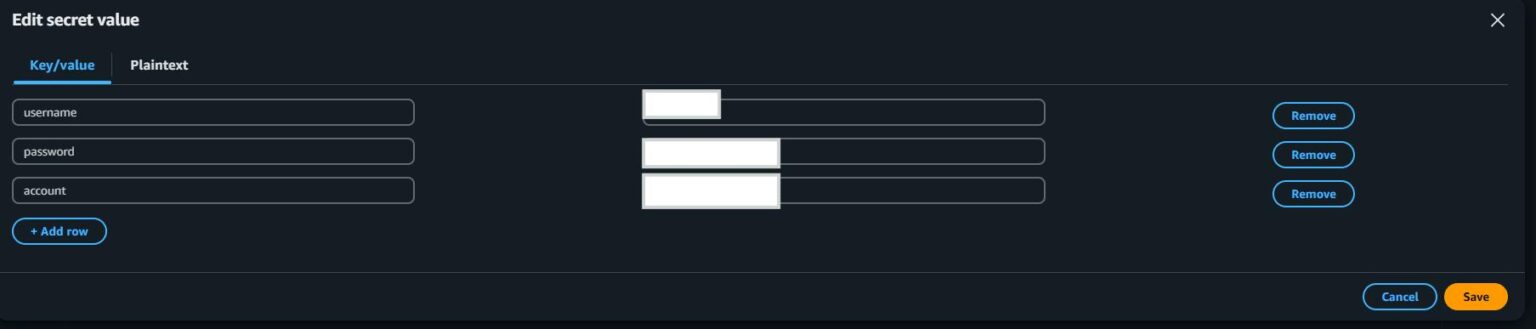
For Acccount key run the given command on snowflake.
- Use role AccountAdmin;
- SELECT SYSTEM$ALLOWLIST();
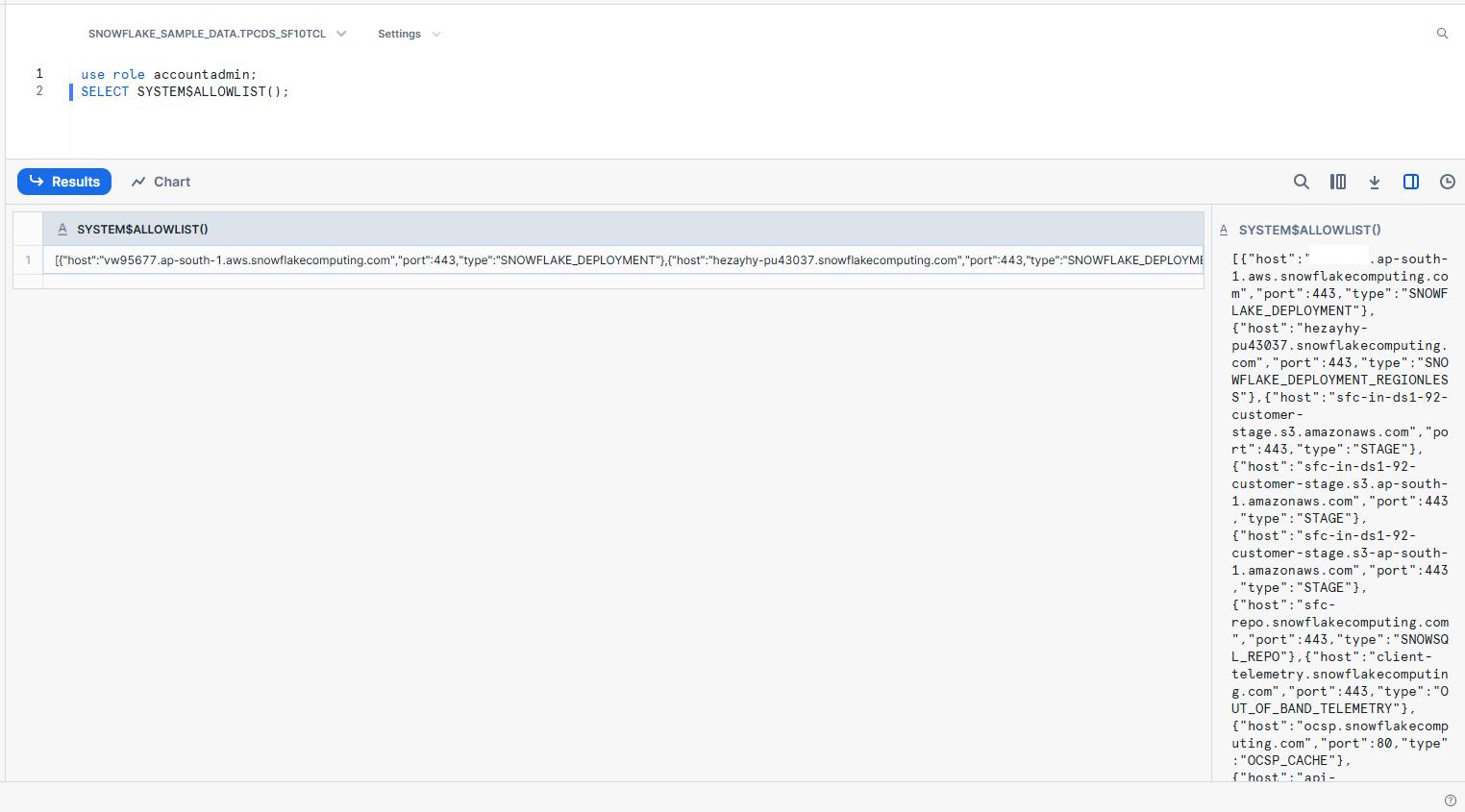
The part of the link covered and the region altogether makes your account.
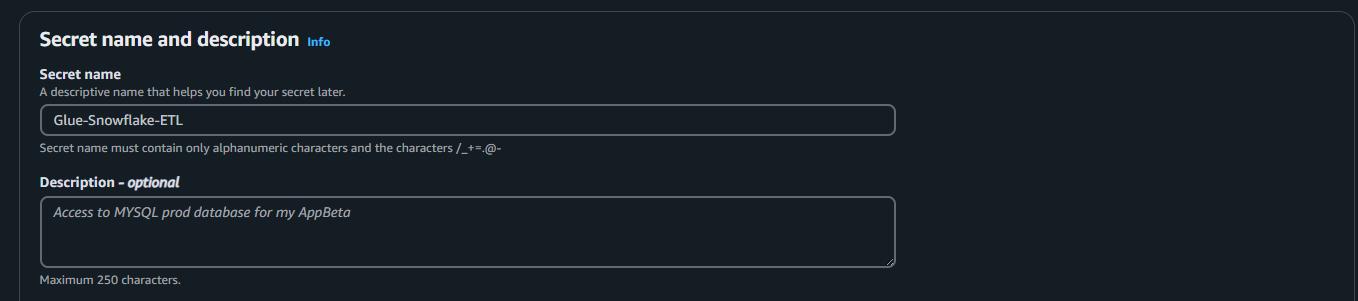
Step 4: Name and Tag Your Secret
Setting Up IAM Roles
Importance of IAM Roles
IAM (Identity and Access Management) roles in AWS define who can access what resources and under which conditions. For an ETL pipeline involving AWS Glue and Snowflake, correctly configuring IAM roles is crucial for security, access control, and functionality.
- Always follow the principle of least privilege—grant only the permissions absolutely needed.
- Avoid assigning broad permissions like full access to all AWS services or resources.
- Secure roles ensure that Glue jobs cannot unintentionally access other resources, helping protect your data and maintain compliance.
Required Permissions & Their Purpose
S3 Bucket Directory Access: Grants Glue permission to read source data files and optionally write logs or outputs to S3.
AWS Glue Service Role: Allows Glue to perform ETL operations like running jobs, accessing data catalog, etc.
Secrets Manager Read/Write Access: Enables Glue to securely read Snowflake credentials stored in Secrets Manager.
ROSAKMSProviderPolicy: Grants Glue access to use KMS customer-managed keys for decrypting secrets and data at rest.
How to Set Up IAM Role for Glue ETL Job
Step 1: Go to IAM Console
- 1Navigate to IAM > Roles.
- 2Click Create Role.
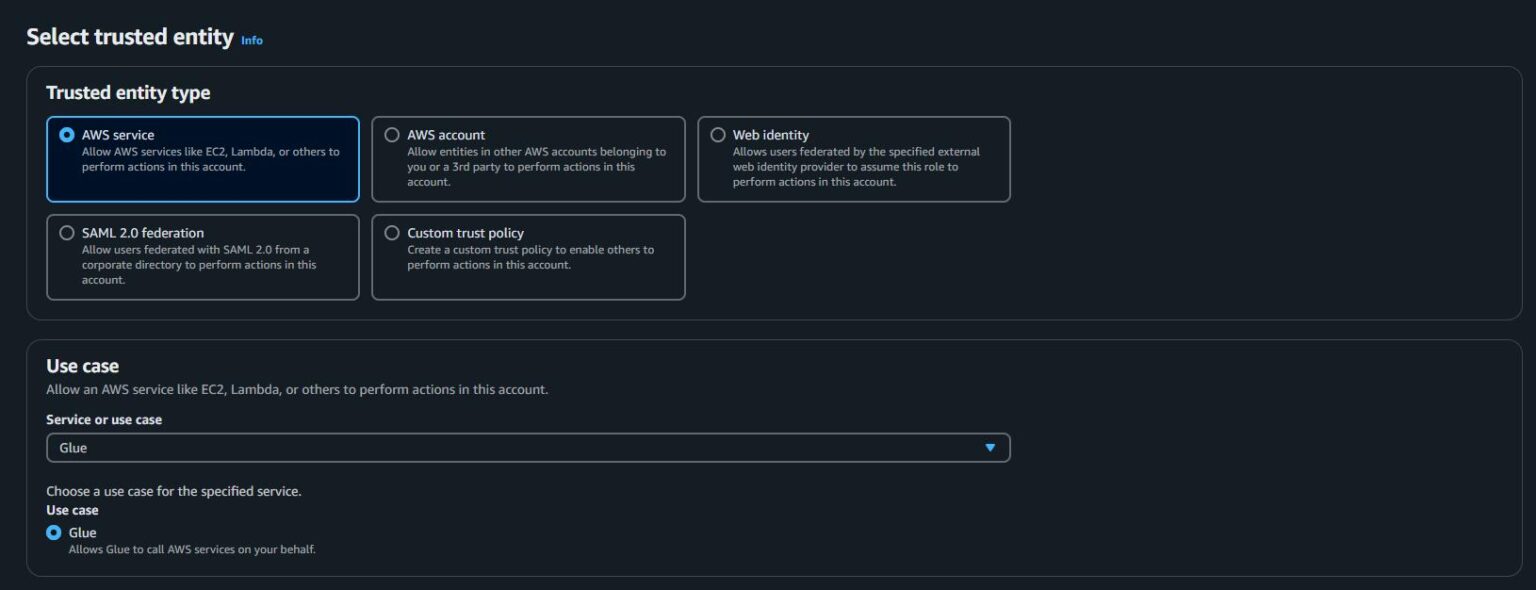
Step 2: Choose Trusted Entity
- 1Select AWS service.
- 2Under use case, select Glue.
- 3Click Next.
Step3: Add Permissions

Step 4: Add Permissions using inline policies for limited access of s3 and secrets manager
1. Navigate to IAM > Roles > Your-Role > Add permissions > Create Inline policy
2. Switch to JSON tab
3. Add this json into your policy and make sure to update the bucket and secrets details
{“Version”: “2012-10-17”,“Statement”: [{“Sid”: “S3LimitedAccess”,“Effect”: “Allow”,“Action”: [“s3:GetObject”,“s3:ListBucket”],“Resource”: [“arn:aws:s3:::your-bucket-name”,“arn:aws:s3:::your-bucket-name/path-prefix/*”]},{“Sid”: “SecretsManagerAccess”,“Effect”: “Allow”,“Action”: [“secretsmanager:GetSecretValue”,“secretsmanager:DescribeSecret”,“secretsmanager:ListSecrets”],“Resource”: “arn:aws:secretsmanager:region:account-id:secret:your-secret-id-*”}]}
4. Click Next
5. Provide Name for policy and click create.
This policy will now be added into your IAM Role.
Conclusion
You’ve now completed all foundational steps to securely connect AWS Glue to Snowflake. Security and governance should never be an afterthought—laying this groundwork will save you headaches later.
What’s Next?
In Part 2, we’ll:
- Create the AWS Glue connection to Snowflake.
- Build a full ETL pipeline using AWS Glue Studio.
- Customize ETL logic using Glue-generated Python scripts.

The Right Way to Migrate from MySQL to AWS Aurora DSQL
Migrating a production database is one of the highest-risk changes you can make to an application. Moving from MySQL to AWS Aurora DSQL raises the stakes further...
Read More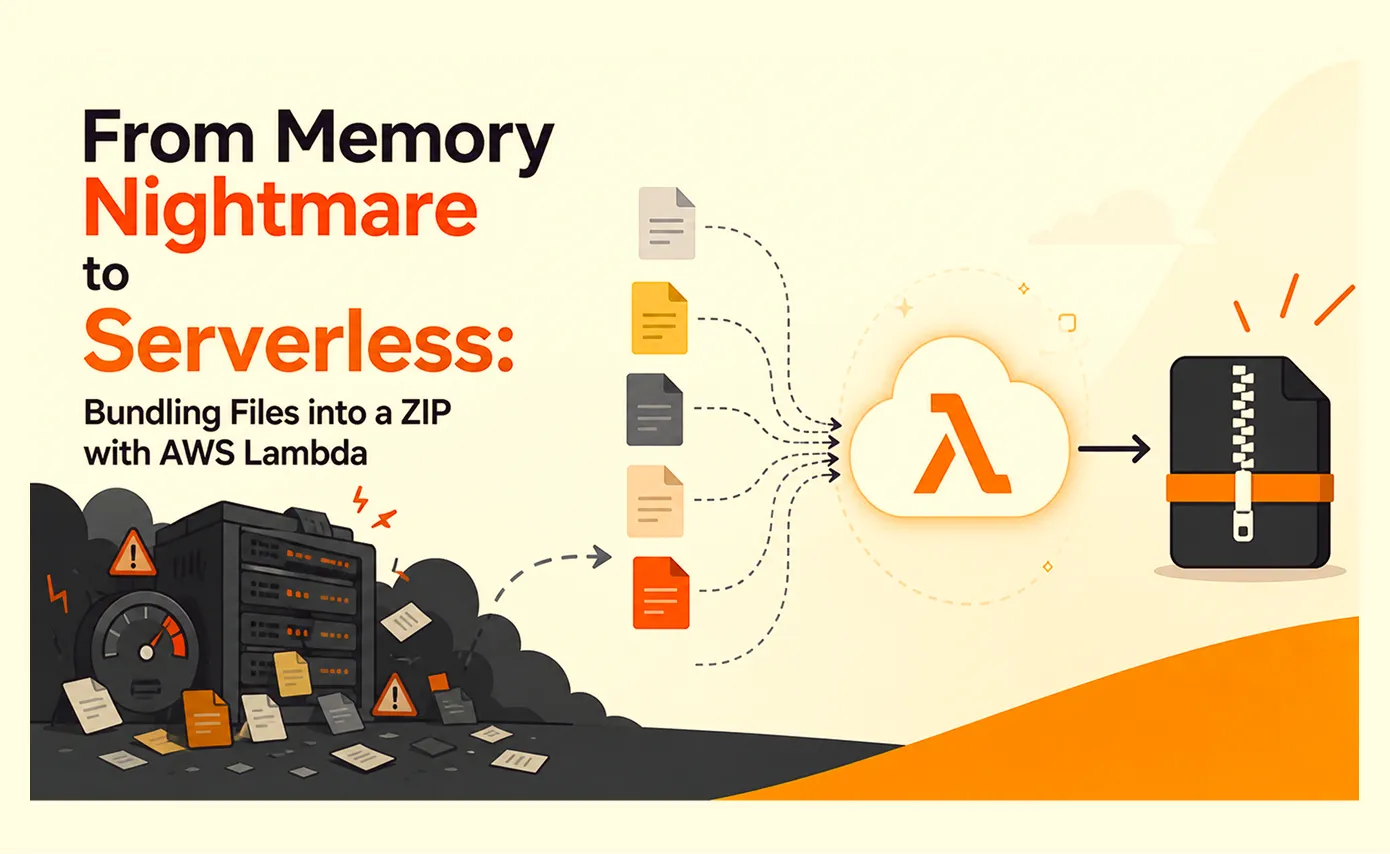
From Memory Nightmare to Serverless: Bundling Files into a ZIP with AWS Lambda
A straightforward 'download all these files as one ZIP' request that worked perfectly on my laptop and... fell over the first day it met real production load. Here's the debugging story, the scaling options I ruled out, and why AWS Lambda was the right answer.
Read More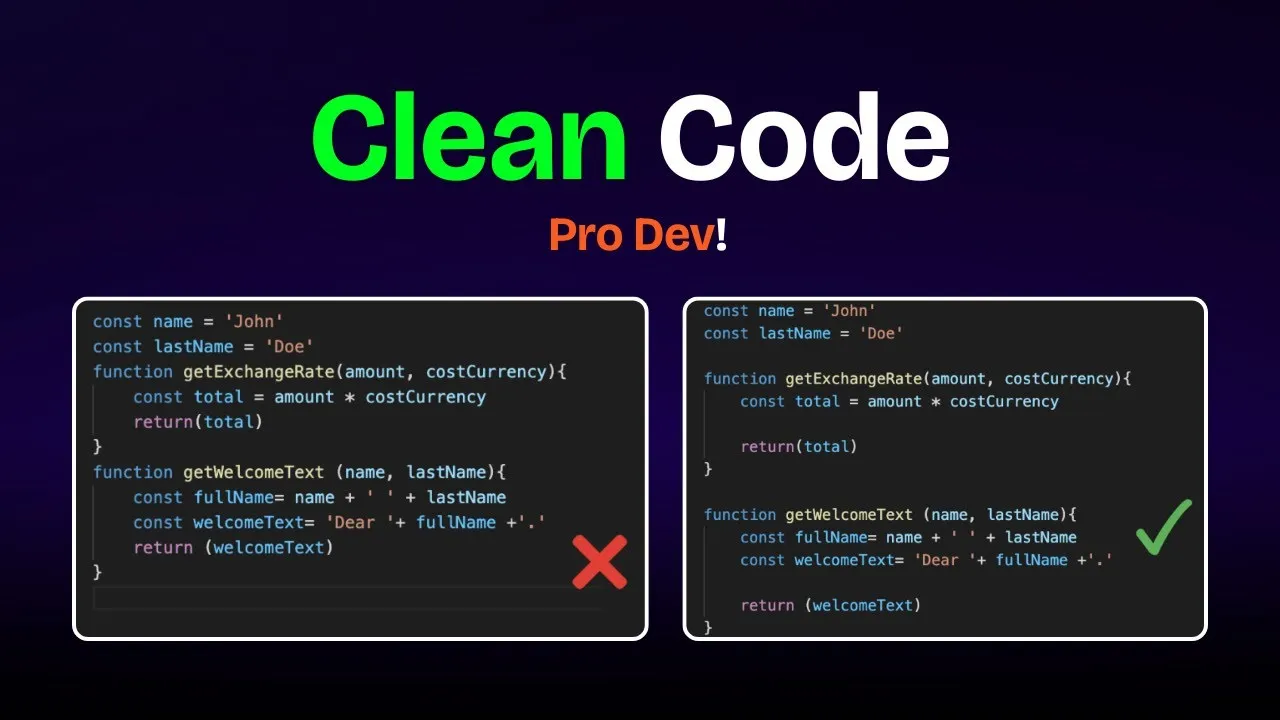
Clean Code vs. Overengineering: Where Should Developers Draw the Line?
Clean code reduces unnecessary complexity; overengineering invents it. A practical guide to using context, evidence, and the cost of change to know when to stop adding abstractions...
Read More
Kafka vs RabbitMQ vs AWS EventBridge: Choosing the Right Architecture Based on Business Requirements
Compare Kafka, RabbitMQ, and AWS EventBridge based on scalability, routing, event streaming, replay, infrastructure, and business requirements to choose the right architecture...
Read More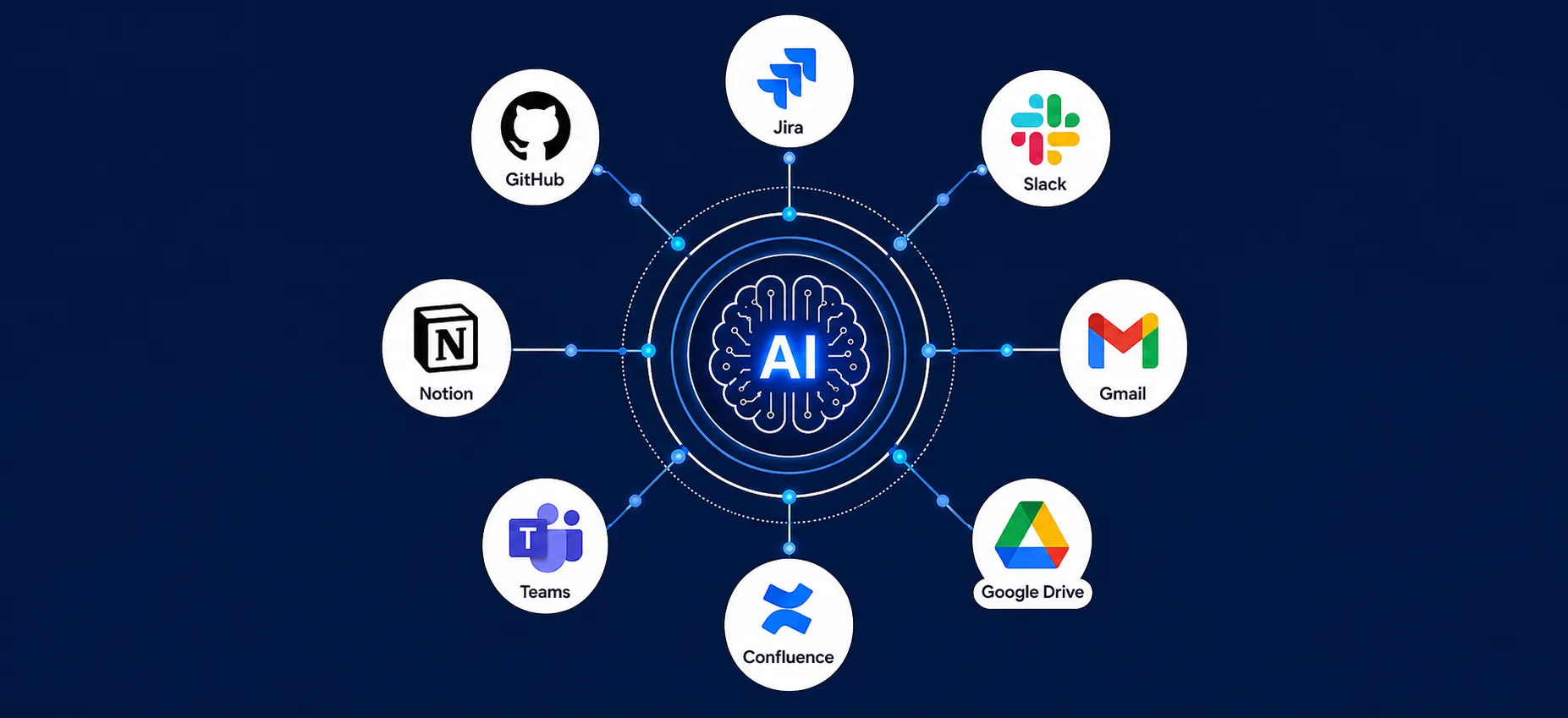
AI Integrations for QA Engineers
Learn how QA engineers can connect AI with Jira, GitHub, Slack, Notion and other tools to improve testing, bug tracking, reporting and QA productivity...
Read More
The Ultimate Guide to Amazon SES Setup with GoDaddy DNS
Learn how to set up Amazon SES with GoDaddy DNS. Complete step-by-step guide covering Easy DKIM, SPF, DMARC, custom MAIL FROM, and exiting the SES Sandbox...
Read More
AWS DevOps Agent Setup Guide with EC2
Learn how to set up AWS DevOps Agent with EC2, CloudWatch, IAM, and Agent Spaces for AI-assisted monitoring, incident investigation, and root-cause analysis...
Read More
Multi-Tenancy Patterns in DynamoDB: Silo, Pool, and Bridge Models
If you've already made the jump from a relational database to DynamoDB see our guide on moving relational data from SQL to DynamoDB...
Read More
We stopped leaving the IDE to design. Here’s our Cursor → Figma flow
Cursor drafts fast, catches gaps early, and still clips fields and breaks layouts. Here's the real pros-and-cons breakdown of our workflow...
Read MoreReady to Work With Us?
Most engagements start with a 20-minute conversation. No pitch, no pressure - just an honest discussion about what you're building and whether we're the right fit.